Forge
The semantic workspace where you model nodes and domains in CML, organised into projects bound to a warehouse connection.
When to use it: Whenever you need to define or change what Discover, Orion, and Mosaics can query.
Where to find it: Left sidebar → Forge.
Who can use it: Weaver and Luminary roles.
Forge is where your semantic model lives. Weavers and Luminaries write and maintain the CML that defines nodes (your tables), domains (the joins and reveals that turn nodes into queryable metrics), and the rules that govern them. Every field in Discover, every tile in a Mosaic, and every answer Orion gives traces back to a definition you make here.
Forge is organised around projects — each project is bound to a warehouse connection, and its nodes and domains query that connection. You switch between modes — Build, Browse, Validate, and Evals — to write, explore, check, and test your model. When you save changes to a domain, the Check & Save gate runs a set of semantic checks first, so a broken or risky change is caught before it reaches the people querying it.
Overview
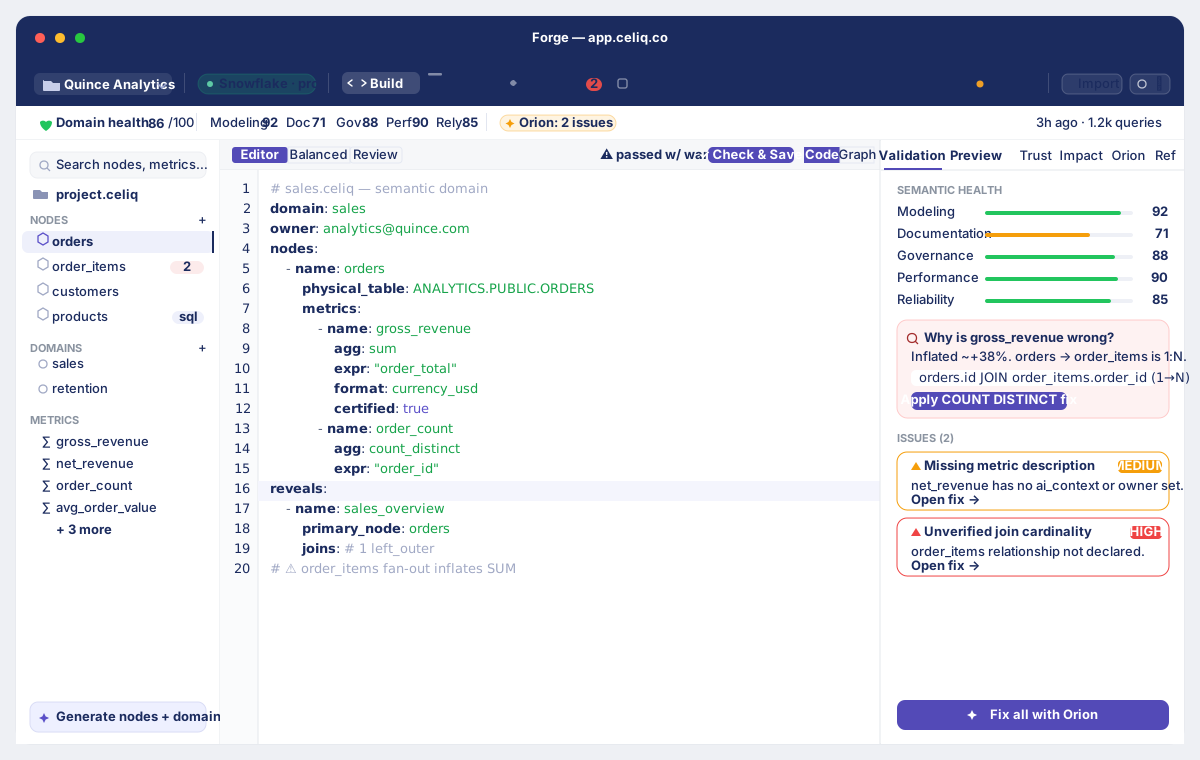
Forge has three layers you work with:
- A navy sub-nav bar at the top with the project picker, a connection pill, the four mode tabs (Build, Browse, Validate, Evals), a Saved/Unsaved indicator, and Import and Settings buttons.
- The main work area, which changes with the mode. In Build mode this is a three-pane layout: the file tree on the left, the CML editor (or Graph/Lineage view) in the centre, and the semantic intelligence panel on the right.
- The Check & Save gate, which runs over a domain before its changes are saved and returns one of three verdicts.
There is no Git toolbar and no Draft/Live toggle in Forge. Saving a domain goes through the Check & Save gate; everything you save is governed by that gate rather than by a manual commit-and-promote flow.
When to use it
Open Forge when you need to:
- Add a new table to the model — create a node for it, with its attributes (groupable fields) and metrics (aggregates).
- Define or change a metric — so that Discover, Orion, and Mosaics all use one agreed definition.
- Join tables together — build a domain that connects nodes and exposes reveals.
- Check the health of the model — use Validate mode to see every error and warning across the project in one place.
- Test how Orion answers — use Evals mode to run prompt sets against your model and score the results.
If you only want to query data that already exists in the model, you do not need Forge — use Discover instead.
Concepts
| Term | What it means |
|---|---|
| Project | A container for nodes and domains, bound to one warehouse connection. You can have several projects; the active one is shown in the project picker. |
| Connection | The warehouse a project queries (Postgres, BigQuery, Snowflake, and others). Shown as a pill in the sub-nav. A project with no connection shows an amber No connection pill. |
| Node | A semantic definition of one physical table — its physical_table, its attributes (groupable dimensions), and its metrics (aggregates). |
| Domain | A file that lists nodes, defines the joins between them, and exposes reveals — the named, queryable metric sets that Discover and Mosaics use. |
| Reveal | A named entry point inside a domain (e.g. orders_analysis) with a primary node, joins, and selected metrics. |
| Mode | One of Build, Browse, Validate, or Evals — chosen with the tabs in the sub-nav. |
| Check & Save gate | The semantic-check pipeline that runs before a domain save and returns passed, passed with warnings, or blocked. |
Some projects are read-only. Built-in system projects and the bundled demo project cannot be edited — Forge shows a "Read-only" or "Demo project — read only" banner. To get an editable project, connect your own warehouse and create a new project.
Getting started
Prerequisites- A Weaver or Luminary role. Tracer and Lens users query the model in Discover but cannot open Forge.
- A warehouse connection in your workspace. See Warehouses.
- A project bound to that connection. Creating a project requires the Luminary role; if your workspace has no projects, Forge creates a Default Project for you and assigns it your first connection.
From the left sidebar, click Forge. The navy sub-nav bar appears with your active project, its connection pill, and the four mode tabs. Build mode is selected by default.
Step-by-step
Pick or create a project
Click the project name in the sub-nav to open the project dropdown. Switch to another project, or choose New project (Luminary only). Use Project settings in the same menu to set or change the project's connection.
Confirm the connection
Check the connection pill next to the project name. A green pill shows the connected warehouse. An amber No connection pill means you need to set one — click it (or Settings) to open Project settings.
Create your nodes
In Build mode, use the file tree's add actions to create a node, generate nodes from your warehouse schema, or add a SQL node. Each node defines a physical_table, its attributes, and its metrics. You can also bring in existing models via the Import button (for example, a dbt manifest).
Build a domain
Create a domain that lists the nodes you want to connect, defines the joins between them, and exposes reveals. Open the domain file to edit its CML in the centre editor. For domains you can also switch the centre view between Code, Graph, and Lineage.
Check & Save
With a domain open, click Check & Save. The semantic-check gate runs Validation, Performance, Governance, Lineage, and Impact checks, then shows a verdict. A clean pass saves automatically; warnings let you Save anyway; a blocking failure must be fixed (or overridden by a Luminary) before it saves.
Validate the whole project
Switch to Validate mode to see every error and warning across all files in the project, not just the one you are editing. Click an issue to jump back into Build mode at the right file.
Examples
A simple node defines one table — its physical table, attributes, and metrics:
node: orders
physical_table: analytics.orders

attributes:
  - name: order_id
    column: order_id
  - name: status
    column: status
  - name: created_at
    column: created_at
    type: date

metrics:
  - name: total_revenue
    intent: sum
    column: revenue
  - name: order_count
    intent: count
A domain lists nodes, joins them, and exposes a reveal that Discover and Mosaics can query:
domain: sales
project: default_project

nodes:
  - orders
  - customers

reveals:
  - name: orders_analysis
    label: "Orders Analysis"
    primary_node: orders
    joins:
      - node: customers
        type: left_outer
        on: orders.customer_id = customers.id
        relationship: many_to_one
    selected_metrics:
      - total_revenue
      - order_count
When you save this domain, the Check & Save gate runs. If orders joins to a node in a way that could multiply rows, the Performance check flags a fanout risk and the verdict comes back blocked until you resolve it.
Best practices
- One project per warehouse connection. Keep a project focused on the data in its connection so the model stays coherent.
- Model nodes before domains. A domain references nodes by name and pulls metrics from their node files, so define the nodes first.
- Let Check & Save be your gate. Run it before you walk away from a domain change — a green pass means Discover, Orion, and Mosaics will get a sound model.
- Use Validate mode as a pre-flight. Before a big change goes out, switch to Validate and clear the project-wide error and warning list.
- Give metrics owners. The Governance check warns about metrics with no owner; assigning owners keeps the model accountable and lifts the governance score.
Tips
Use the layout presets above the editor — Editor, Balanced, and Review — to resize the three panes for the task at hand. Pick Review when you want the intelligence panel wide while reading the Check & Save results, and Editor when you just want maximum room to write CML. Your choice is remembered between sessions.
Common mistakes
Expecting a Git commit or a Draft/Live switch. Forge has neither in the UI. Saving a domain goes through the Check & Save gate — that is the governance step, not a manual commit.
Saving a domain with a fanout risk and ignoring the block. A fanout multiplies rows and inflates metrics. The gate blocks it for a reason; fix the join relationship rather than overriding unless you are certain.
Troubleshooting
| Symptom | Cause | Fix |
|---|---|---|
| Connection pill shows amber No connection | The active project has no connection set | Click the pill or Settings, open Project settings, and choose a connection. |
| Editor shows a Read-only badge and edits are blocked | The active project is a built-in system project | Switch to (or create) a non-system project bound to your own warehouse. |
| Demo project — read only banner | The active project is the bundled demo | Connect your own warehouse in Forge settings and create an editable project. |
| Check & Save verdict is blocked | A blocking check failed — most often a fanout risk in Performance, or CML that will not parse in Validation | Use Fix & Re-run to apply the suggested fix and re-check, or fix the CML by hand. A Luminary can Override & Save when the block is intentional. |
| Check & Save verdict is passed with warnings | A non-blocking check (e.g. Governance below threshold, or a many-to-many join in Lineage) raised a warning | Choose Save anyway to proceed, or Review warnings to address them first. |
| Override & Save button is disabled | Overriding a blocking check requires the Luminary role | Ask a Luminary to review and save, or fix the blocking issue. |
| An Orion created N draft items banner appears | Orion generated nodes or domains as drafts for review | Click Review drafts to open each one, then Publish or Discard it. |
| A node will not delete | A reveal still depends on it (the delete returns a conflict) | Remove or repoint the dependent reveals first, then delete the node. |