Building the semantic layer (Build & Browse)
Edit nodes and domains in the Forge CML editor with autosave, the health bar, and the Orion draft review flow, or read your model in Browse.
When to use it — Build mode when you are creating or changing the semantic layer; Browse mode when you just want to read what already exists.
Where to find it — Open Forge from the top nav, pick a project, then use the mode switch in the navy Forge sub-nav bar to move between Build and Browse.
Who can use it — Weavers and Luminaries can edit in Build. Anyone with Forge access can read in Browse; system and demo projects are read-only for everyone except the super admin.
Forge is where you model your warehouse data into a semantic layer that the rest of Celiq — Discover, Mosaics, and Orion — reads from. You write that model in CML, Celiq's YAML-based modeling language, split across two file types: nodes (one per table or SQL block, holding dimensions and metrics) and domains (which wire nodes together with reveals into a queryable surface).
This page covers the two modes you live in while modeling: Build for authoring and Browse for reading. It keeps CML syntax light — for the full language, see the CML reference.
Overview
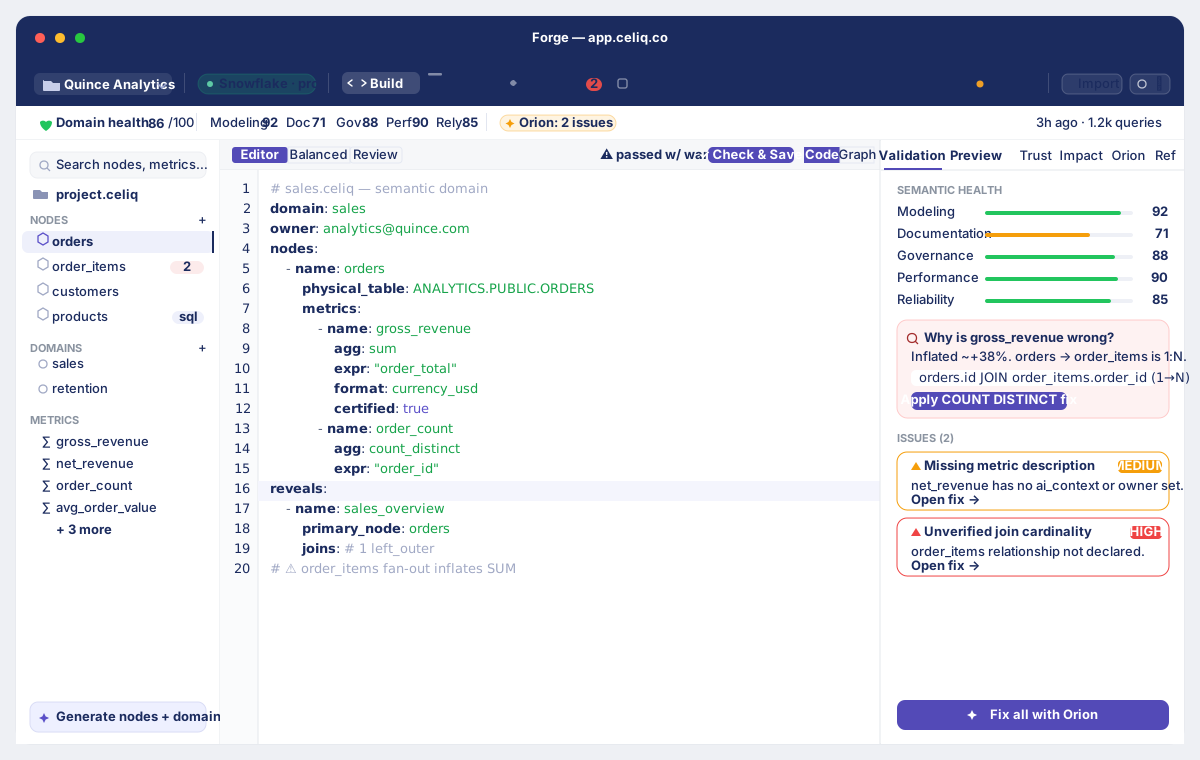
Every keystroke in the editor autosaves on a short debounce, so there is no separate "save draft" step — your work is persisted as you type. A Check & Save gate gives you an explicit validation pass before you commit a domain change.
Browse mode is a read-only, two-panel view of the same model: nodes on the left, expandable into their dimensions and metrics; a detail panel on the right showing each field's CML snippet and metadata. When you find something you want to change, Edit in Build jumps you straight back into the editor for that node.When to use it
| You want to… | Use |
|---|---|
| Create a new node or domain, or change CML | Build mode |
| Read which fields a node exposes, and how they are defined | Browse mode |
| Check the health of a domain before shipping | Build mode health bar + Check & Save |
| Review and publish nodes/domains Orion drafted for you | Build mode draft review banner |
| Hand a teammate a quick tour of the model without risk of edits | Browse mode (read-only) |
Concepts
| Term | What it means |
|---|---|
| Node | A CML file describing one table (or SQL block) — its dimensions (attributes) and metrics. Node files carry a node icon; SQL-backed nodes show an sql badge. |
| Domain | A CML file that ties nodes together with reveals into a queryable surface. Domain files unlock the health bar and the Graph/Lineage views. |
| Dimension | A descriptive field (string, date, timestamp) you slice by. In CML these live under attributes. |
| Metric | An aggregatable measure (e.g. a sum or count). In CML these live under metrics, with an intent and a physical column or locus. |
| Autosave | The editor persists your content automatically 1500 ms after you stop typing; the status bar shows saving… then Saved. |
| Draft | A node or domain whose CML contains a draft: true line — typically created by Orion. Drafts surface a review banner until you Publish or Discard them. |
| Check & Save | The validation gate for domain changes, opened from the toggle bar above the editor. |
Getting started
Before you can edit, you need a Forge project backed by a warehouse connection, and at least one node or domain in it. To open the editor:
- Open Forge from the top navigation.
- Choose a project from the project switcher in the navy Forge sub-nav bar (or create one).
- Use the mode switch in that same bar to select Build or Browse.
System projects and the demo project are read-only. In Build mode you will see a Read-only badge (or a demo banner), and the editor will not accept changes. Connect your own warehouse in Forge settings to get an editable project.
Step-by-step
Open a file in Build mode
With Build selected, click a node or domain in the left file tree. The centre panel loads that file's CML into the editor, and the top bar shows a breadcrumb (nodes / <name> or domains / <name>) plus a green Valid badge or a red error count.
Edit the CML
Type directly in the editor. As you edit, the status bar at the bottom shows the line count, validation summary, cursor position (Ln, Col), and the active connection chip. There is no manual save needed — but a Save button in the top bar lets you flush immediately if you prefer.
Let autosave persist your work
1500 ms after you stop typing, Forge saves the file. Watch the status bar flip from saving… to Saved. Each save also writes a version into history, which you can reopen with the ⟲ History button (node files).
Validate against the warehouse (node files)
For a node file, click ⬡ Test warehouse to confirm the column names in your CML actually exist in the live warehouse. A banner reports either ✓ Warehouse validated with the column count, or ✗ Warehouse validation failed listing the missing columns. Use ✦ Re-detect metrics to refresh metrics and types from the live schema.
Switch views for a domain file
With a domain open, use the Code / Graph / Lineage toggle (top right of the editor area) to switch the centre panel between the raw editor, the node Graph, and the metric Lineage view. The health bar above reflects the domain's semantic health.
Run Check & Save before shipping a domain
Click ✓ Check & Save to open the validation gate. It runs the semantic checks and shows a verdict — ✓ checks passed, ⚠ passed w/ warnings, or ✗ 1 blocking. Resolve blockers, or save anyway when the warnings are acceptable.
Review Orion drafts
If Orion has created draft items, a yellow banner appears above the editor: "Orion created N draft items." Click Review drafts to open the Orion Draft Review modal, then act on each one (see Examples).
Examples
Reading a metric in Browse mode
Switch to Browse, expand a node in the left tree, and click a metric under its Metrics group. The detail panel shows the field name, a subtitle (<intent> metric · <node> node), a CML snippet, and four metadata cards. For a revenue metric you might see:
metrics:
  - name: total_revenue
    intent: sum
    column: order_amount
    description: "Gross order revenue before refunds"
The 2×2 metadata cards for that metric show Intent (sum), Type (or inferred), Grain behavior (or default), and Physical column. When you want to change it, click Edit in Build — Forge switches to Build mode and opens the orders node at that file.
Publishing an Orion draft
Orion marks generated items with a draft: true line in their CML:
node: customers
draft: true
attributes:
  - name: customer_id
    type: string
    column: id
In the Orion Draft Review modal each draft offers three actions:
- Open — load the file in the editor so you can inspect it.
- Publish — Forge fetches the file, strips the
draft:line, and saves it back (the node/domain becomes a normal, published file). - Discard — deletes the drafted node or domain entirely.
After you publish, the draft: true line is gone and the item no longer appears in the banner.
Best practices
- Let autosave do its job. You do not need to hit Save after every line; wait for the
Savedindicator. Use the explicit Save button only when you are about to navigate away immediately. - Test node columns against the warehouse with ⬡ Test warehouse before wiring a node into a domain — it catches typo'd column names early.
- Run Check & Save before a domain goes live. Treat a
blockedverdict as a stop sign; only Save anyway on warnings you understand. - Review Orion drafts promptly. Drafts are not yet part of your live model — publish the good ones and discard the rest so the banner stays empty.
- Browse first when onboarding. Send new analysts to Browse mode to learn the model without any risk of accidental edits.
Tips
The bottom status bar is your at-a-glance dashboard while editing: line count, error/warning summary, save state, cursor position, domain structure counts (nodes · reveals), and the active connection. If something looks off, check it there before digging into the CML.
Common mistakes
- Expecting a draft to be live. A node or domain with
draft: trueis excluded from your published model until you Publish it in the Orion Draft Review modal. If a new field is not showing up downstream, check whether it is still a draft. - Editing a system or demo project. These are read-only. The editor shows a Read-only badge (or demo banner) and silently ignores changes — switch to an editable project backed by your own warehouse.
- Trying to validate a domain file against the warehouse. Test warehouse and Re-detect metrics are node-only actions; they do not appear on domain files.
- Saving an empty file. A save with no content is rejected — the file must contain CML.
Troubleshooting
| Symptom | Cause | Fix |
|---|---|---|
Status bar shows a red ✗ N errors and a red badge in the top bar | The CML has validation errors | Open the ForgeIntelPanel on the right or click into the flagged line; fix the CML until the badge reads Valid. |
Test warehouse banner: ✗ Warehouse validation failed with "Missing: …" | Column names in the node CML do not exist in the live warehouse | Correct the column values to match real warehouse columns, or run ✦ Re-detect metrics to pull current names. |
| Test warehouse banner: "Could not connect to warehouse for validation." | The project's warehouse connection is unreachable | Check the connection in Forge settings; confirm the warehouse is up and credentials are valid. |
| Editor will not accept edits | The file is in a system/demo project (Read-only badge shown) | Switch to an editable project, or sign in as the super admin for system files. |
| Saving a node returns "System nodes cannot be modified" | You edited a node in a system project as a non-super-admin | System nodes are protected; create an equivalent node in your own project instead. |
| Re-detect reports "Could not re-detect — check the connection." | The live schema lookup failed for that node | Verify the node's table exists and the connection works, then retry. |
Check & Save shows ✗ 1 blocking | A semantic check (e.g. a fan-out risk) failed | Use the gate's Fix path to resolve it, or Save anyway only if the warning is acceptable for your model. |