Asking Orion questions
Ask Orion natural-language questions in chat — sessions, starter suggestions, keyboard send, history, and the Discover/Mosaic Ask Orion hand-offs.
When to use it: Any time you want a fast answer, a query built for you, or an explanation of what changed — without writing SQL or building a report by hand.
Where to find it: The Orion page in the left navigation (
/orion), plus Ask Orion buttons inside Discover and on Mosaic tiles.Who can use it: Tracer, Weaver, and Luminary. (Lens read-only users do not have access to the chat surface.)
Orion is the AI analyst built into Celiq. It already knows your semantic model — your nodes, domains, metrics, and reveals — so you can ask a question the way you would ask a colleague and get an answer that uses your real field names and real data. Behind the scenes Orion runs an agentic loop: it calls tools to query the warehouse, reads the results, and writes a plain-English answer with a provenance footer that tells you exactly where the numbers came from.
This page covers how to ask questions in the chat surface: starting and managing conversations, the starter suggestions, sending with the keyboard, how conversation history is handled, and the Ask Orion entry points that pre-fill a question for you from elsewhere in Celiq.
Overview
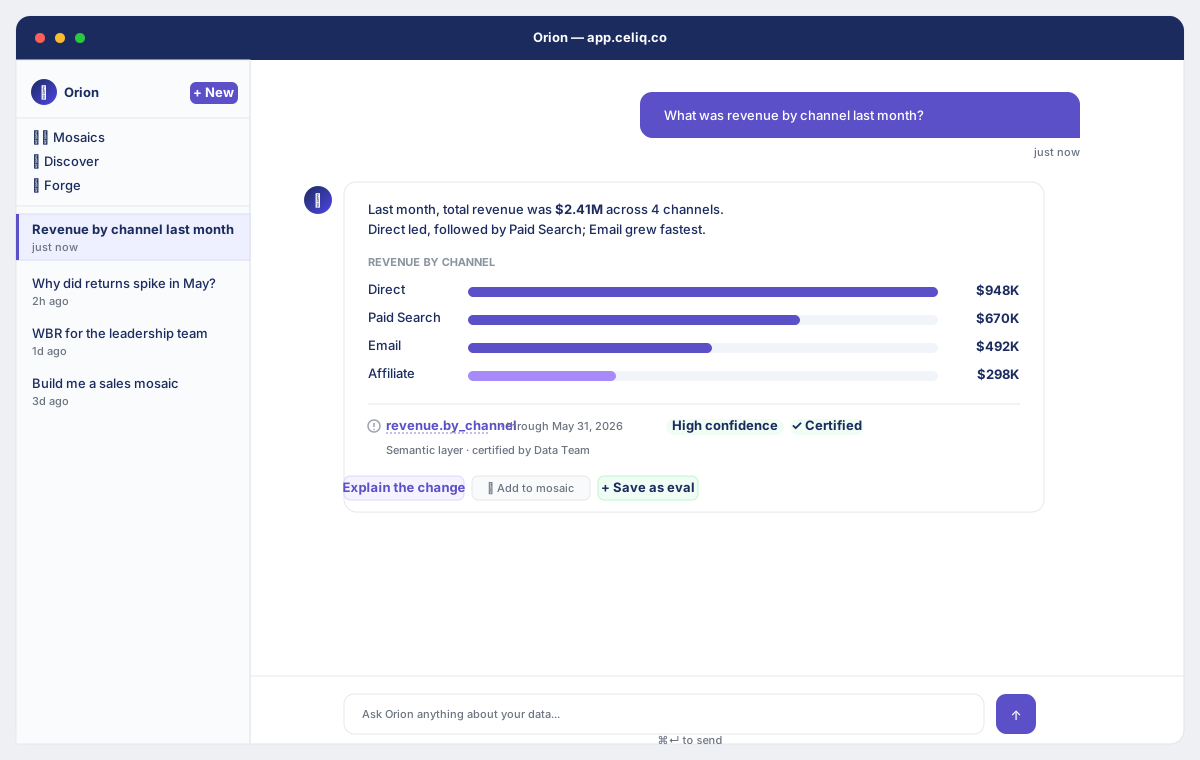
The Orion page has two panels. The left panel is your sessions sidebar — every conversation you have had, newest first, plus a + New button and quick links to Mosaics, Discover, and Forge. The right panel is the chat: messages stream in as a conversation, and a text box at the bottom is where you type.
When you send a question, Orion does the work in a loop on the server. It reads your semantic context, decides which tools it needs (for example, running a certified reveal or a SQL query), executes them, and then synthesises an answer. Each answer arrives with a provenance footer that records the source tier, the freshness of the data, and the tables it touched — so you can always tell a certified answer from a raw-SQL answer.
You do not have to start on the Orion page. Many surfaces in Celiq — a metric card, a Discover result, a Mosaic tile — have an Ask Orion button that pre-fills a relevant question and drops you into the chat with that question already sent.
When to use it
- You want a quick answer to a data question and do not want to build a report.
- You want Orion to build a query for you — describe what you want and it returns the fields, filters, and SQL.
- You want to understand what changed — for example, why a metric moved week over week.
- You are looking at a chart or tile and have a follow-up question about that specific result.
- You want Orion to draft a WBR (Weekly Business Review) or assemble a Mosaic from a starting point.
Concepts
| Term | What it means |
|---|---|
| Session | One conversation thread. Sessions are listed in the sidebar and persist so you can return to them. The title defaults to the first message you sent. |
| Starter suggestion | One of four canned prompts shown on an empty chat to get you going. Clicking one sends it immediately. |
| History | The recent turns of the current conversation that are sent along with your new question so Orion has context. The chat sends the last 6 messages, each capped in length, to keep the context window manageable. |
| Agentic loop | The server-side process where Orion calls tools (querying reveals or SQL), reads the results, and writes an answer. It iterates until it has what it needs. |
| Provenance footer | The line appended to each answer recording the source tier, freshness, and tables used. See Confidence and provenance. |
| Prefill hand-off | When you click Ask Orion elsewhere in Celiq, the question is stashed in the browser and auto-sent the moment the Orion page loads. |
Getting started
Prerequisites- You are signed in as a Tracer, Weaver, or Luminary.
- Your workspace has an AI key configured. Orion uses your workspace's own model key (Anthropic, OpenAI, Gemini, or Azure OpenAI). Without one, Orion cannot answer — see Common mistakes below.
- You have at least one node or domain modelled, so Orion has a semantic layer to reason over. (Orion still answers without one, but its answers are far more useful when your model is in place — see Building with Orion.)
From the left navigation, click Orion. You land on the chat surface with the sessions sidebar on the left. If you have no conversations yet, the sidebar shows "No conversations yet" and the chat shows the welcome state with starter suggestions.
Step-by-step
Open the Orion page
Click Orion in the left navigation. The chat surface opens. If this is your first visit you will see the welcome screen: "I'm Orion, your AI analyst." with four suggestion chips.
Start a conversation
Either click one of the four starter suggestions, or type your own question in the box at the bottom. You do not have to click + New first — sending a message with no active session automatically creates one, titled from the first 40 characters of your question.
Send your question
Press ⌘ + Enter (Mac) or Ctrl + Enter (Windows) to send, or click the send button. Plain Enter adds a newline so you can write multi-line questions.
Wait for the agentic loop
Orion shows an animated "thinking" indicator while it runs. On the server it calls the tools it needs — for example running a certified reveal or a SQL query — reads the results, and then writes the answer. This can take a few seconds for questions that touch the warehouse.
Read the answer and its provenance
The answer renders as formatted text (with tables, lists, and code blocks where relevant). Below it, a provenance footer records the source tier, freshness, and tables used. A certified reveal yields a high-confidence answer; raw SQL yields a lower tier. See Confidence and provenance.
Act on the answer
Depending on the answer, Orion surfaces action buttons: Open in Discover, Open in Forge, Open Mosaic, Add to mosaic (when the answer contains SQL), Explain the change (on analysis answers), plus Log decision and Save as eval.
Continue or switch conversations
Keep asking follow-ups in the same thread — Orion carries recent context. To start fresh, click + New. To revisit an old thread, click it in the sidebar. To remove one, open its ⋯ menu and choose Delete conversation.
Examples
A typical exploration session looks like this.
You ask:Show me revenue by region last 30 daysOrion recognises this as a query, runs a reveal or SQL against your model, and answers with a formatted table of regions and revenue, plus a provenance footer. Because the answer contains a query, an Add to mosaic button appears so you can pin it to a dashboard, and an Open in Discover action lets you keep exploring the same query interactively.
You follow up in the same thread:Why did revenue drop in EMEA?Orion uses the recent history of the conversation (the last few turns) to know "revenue" and "EMEA" refer to what you were just looking at, then breaks down the change. On analysis answers like this, an Explain the change button appears that asks Orion to decompose the movement by the top contributing dimensions.
The four built-in starter suggestions shown on an empty chat are:
| Suggestion | What it does |
|---|---|
| Create a WBR for me | Opens the WBR builder so you can pick canvas sets, columns, and metrics. |
| What's unusual in my data this week? | Asks Orion to surface anomalies across your data. |
| Show me revenue by region last 30 days | A ready-made query example. |
| Build me a sales mosaic | Asks Orion to assemble a Mosaic; the answer links straight to it. |
Best practices
- Be specific about time and grain. "last 30 days", "by region", "monthly" all help Orion build the right query the first time.
- Stay in one thread for a line of inquiry. Follow-ups reuse recent context, so "now break that down by channel" works without restating the whole question.
- Start a new chat when you change topics. Because only the last few turns travel with each question, a fresh session keeps unrelated context from leaking in.
- Prefer certified reveals. Answers backed by a certified reveal carry the highest confidence tier. If an answer falls back to raw SQL, consider certifying the underlying reveal — see Building with Orion.
- Use the entry points. When a question is about a chart or metric you are already looking at, click its Ask Orion button rather than retyping — the question arrives pre-filled with the right context.
Tips
Send with ⌘ + Enter (or Ctrl + Enter). Plain Enter inserts a newline, so you can compose a multi-line question and send it all at once. The input grows as you type, up to a few lines, then scrolls.
Common mistakes
ORION_NOT_CONFIGURED state. Click through to AI Settings and add your own model key (Anthropic, OpenAI, Gemini, or Azure OpenAI), then return to Orion. A Luminary must do this for the workspace.- Pressing Enter expecting it to send. Enter adds a newline — use ⌘/Ctrl + Enter to send.
- Expecting deep memory of an old chat. Each question carries only the last 6 turns of the current session (trimmed for length). For a long, evolving analysis, keep your follow-ups close together rather than expecting Orion to recall a message from much earlier.
- Hitting the monthly query limit. Each workspace plan has a per-month Orion query cap. When you reach it, Orion returns a limit message instead of an answer and prompts you to upgrade. Free-tier caps are small; upgrading raises the limit.
Troubleshooting
| Symptom | Cause | Fix |
|---|---|---|
| Chat shows "Orion needs an AI key" with a Configure AI Settings → button | No model key is configured for the workspace (ORION_NOT_CONFIGURED) | A Luminary opens AI Settings and adds an Anthropic / OpenAI / Gemini / Azure OpenAI key. |
| "You've reached your Orion query limit (.../month). Upgrade your plan to continue." | The workspace hit its monthly Orion query cap (LIMIT_EXCEEDED) | Wait for the monthly reset or upgrade the plan to raise the limit. |
| "I'm having trouble connecting. Please try again." | The request to the chat endpoint failed in transit | Retry. If it persists, check your connection and that the workspace AI key is still valid. |
| Answer arrives but says it could not find or use the data (an honest refusal, no footer) | Orion ran but no reveal or query returned grounded data, so it declined to invent a number | Refine the question, confirm the relevant node/reveal exists, or model the data in Forge. |
| Older context seems "forgotten" mid-conversation | Only the last 6 turns are sent as history | Restate the key detail, or keep related follow-ups close together. |