Navigating the app
Learn the Celiq app shell — the floating pill bar, the Folio/Suite/Loom popovers, the top search pill, and how navigation changes with your role.
When to use it — Any time you need to move between areas of Celiq, jump straight to a field or report, or open Orion.
Where to find it — The pill bar floats at the bottom-center of every page; the top bar is fixed across the top.
Who can use it — Everyone. Lens, Tracer, Weaver, and Luminary all see the shell, but the pills and menu items you see depend on your role.
Celiq keeps navigation out of your way. Instead of a fixed left sidebar, the app uses a compact pill bar that floats at the bottom of the screen and a thin top bar that holds search and your account. Most destinations are one or two clicks away, and the bar quietly slides out of sight when you scroll into a dense workspace.
This page explains every pill, every popover menu, the search command palette, and how what you see changes with your role.
Overview
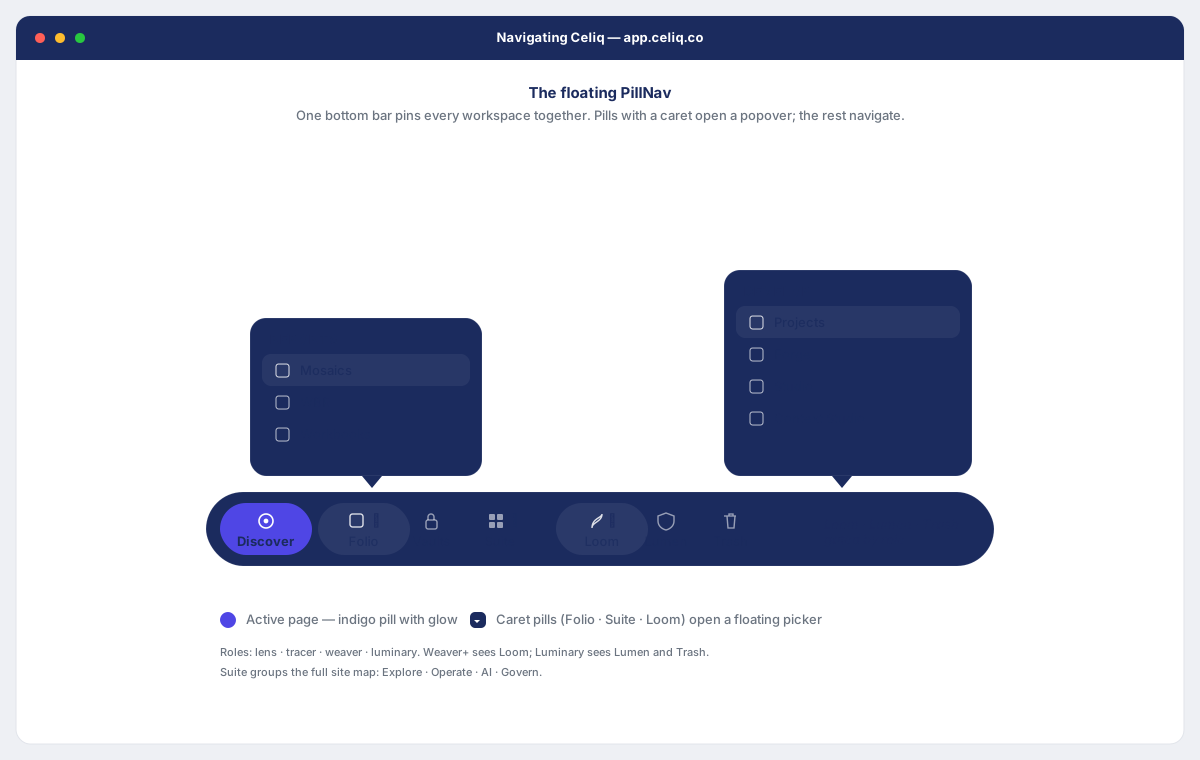
There are two persistent navigation surfaces:
- The pill bar (bottom-center, floating). Top-level pills either navigate directly (Discover, Vaults) or open a popover picker (Folio, Suite, Loom). It auto-hides when you scroll down and reappears when you scroll up. On every page other than Home it renders in a smaller, compact form so it stays out of the way of table-heavy workspaces.
- The top bar. It holds the Celiq logo (which returns you Home), a centered search pill that opens the command palette, the notification bell, and your avatar with your role badge.
Orion, the AI assistant, is not a pill. It opens from its own entry point as a side panel, and you can also launch it from the Ask Orion quick action in the command palette.
When to use it
- Move between areas — switch from building a model in Forge to exploring data in Discover, or open a Mosaic.
- Find something fast — press the search pill (or
Cmd/Ctrl + K) to jump straight to a metric, attribute, Reveal, or Forge node by name. - Reach role-specific tools — admins open Lumen and Trash; builders open the Loom build hub.
- Stay focused — let the pill bar auto-hide while you scroll through a long report, then scroll up to bring it back.
Concepts
| Term | What it means |
|---|---|
| Pill | A rounded button in the bottom bar. A pill either navigates to a page or opens a popover menu. |
| Popover | A floating menu that opens above the pill bar. Folio, Suite, and Loom are popover pills. |
| Compact mode | The smaller version of the pill bar shown on every page except Home, with tighter padding and smaller icons and labels. |
| Auto-hide | The pill bar slides down out of view when you scroll down inside the page and slides back up when you scroll up. |
| Role gating | Pills and menu items are filtered to your role. Anything you cannot access simply does not appear. |
| Command palette | The keyboard-driven search overlay opened with Cmd/Ctrl + K or the top search pill. |
Getting started
There is nothing to install or enable — the navigation shell is always present once you sign in. To orient yourself:
Find the pill bar
Look at the bottom-center of the screen. The dark rounded bar floating there is the pill bar. On the Home page it shows larger labels; on other pages it shrinks into compact mode.
Find the top bar
The thin white bar across the top holds the Celiq logo on the left, the search pill in the center, and your notifications and avatar on the right.
Check your role
Your role badge (Lens, Tracer, Weaver, or Luminary) appears next to your name in the top-right. It determines which pills and menu items are visible to you.
Step-by-step
Open a direct pill
Click Discover or Vaults to navigate straight to that area. The active pill is highlighted.
Open a popover pill
Click Folio, Suite, or Loom. A menu opens above the bar. Click any item to navigate; the menu closes automatically. Click anywhere outside the menu to dismiss it without navigating.
Browse Folio (reports)
Open Folio for the reporting hub. Under Reports you will find Mosaics, WBR (Weekly Business Review), and Workbooks.
Browse Suite (the full sitemap)
Open Suite for the complete map of the app, grouped into Explore (Catalog, Marketplace, Benchmarks, Import), Operate (Mosaics, Alerts, Signals, Decisions), AI (AI Analysts, Weekly Brief, Scenarios, Goals, Knowledge Graph), and Govern (Shared Definitions, Business Glossary, Data Rooms, Semantic Health, Collab).
Browse Loom (the build hub)
If you are a Weaver or Luminary, open Loom for the build tools under Develop: Projects, Forge, Studio, Notebooks, Insights, and Context Studio.
Search with the command palette
Click the search pill in the top bar, or press Cmd + K (Ctrl + K on Windows). Start typing to search across metrics, attributes, Reveals, and nodes; before you type, pick a quick action such as Ask Orion. Press Esc to close.
Open admin areas (Luminary)
If you are a Luminary, the Lumen and Trash pills appear at the end of the bar for workspace administration and recovering deleted items.
Examples
A Tracer wants to open the Weekly Business Review, then look up a specific metric.
Open Folio → WBR
Click the Folio pill, then click WBR under Reports. You land on the Weekly Business Review.
Search for a metric
Press Cmd + K. Type the metric name, for example net revenue. The palette groups results under Metrics, Attributes, Reveals, Nodes, and Orion History. Use the arrow keys to highlight a result and press Enter to open it.
The pill bar visibility for a Tracer in this scenario:
Discover · Folio · Vaults · SuiteA Tracer does not see Loom, Lumen, or Trash — those pills are gated to Weaver+ and Luminary respectively, so they are not rendered at all.
Best practices
- Learn the three popovers. Folio is for reports, Suite is the full sitemap, and Loom is the build hub. Most destinations live in one of these three.
- Use search for known items. When you already know the name of a metric, Reveal, or node,
Cmd/Ctrl + Kis faster than clicking through menus. - Let the bar auto-hide. When reading a long Mosaic or report, scroll naturally; the bar gets out of the way and returns the moment you scroll up.
- Use the logo to reset. Clicking the Celiq logo in the top-left always returns you to Home.
Tips
The pill bar reappears instantly whenever you open a popover, even if you had scrolled it out of view — so you never lose access to navigation while a menu is open. Press ? anywhere outside a text field to open the keyboard shortcuts and help overlay.
Common mistakes
Expecting a missing pill to appear. If you do not see Loom, Lumen, or Trash, that is by design: those pills are hidden for roles that lack access, not disabled. Ask a Luminary if you believe you need a higher role.
Thinking the bar disappeared for good. The bar auto-hides on scroll down. Scroll up (or open a popover) to bring it back.
Troubleshooting
| Symptom | Cause | Fix |
|---|---|---|
| The pill bar is not visible | It auto-hid after you scrolled down | Scroll up inside the page, or open any popover pill — the bar reappears immediately |
| Loom pill is missing | Loom is gated to Weaver and Luminary | This is expected for Lens and Tracer; request a higher role from a Luminary if needed |
| Lumen or Trash pill is missing | Both are Luminary-only | Expected for non-admins; only Luminaries see them |
| A Suite item (for example Alerts, Scenarios, Import) is not in the menu | That item is role-gated and your role lacks access | Items hide for roles without access; the section disappears entirely if none of its items are visible to you |
Typing /discover or /forge in the URL bounces you Home | The route is permission-gated and your role cannot run it | Discover requires run access and Forge requires node-creation access; use an account with the right role |
| The search pill shows no results | Your query did not match any metric, attribute, Reveal, or node | Check spelling, or try a shorter term; the palette shows "No results" until something matches |
| The command palette will not open with the keyboard | Focus is inside a text input or editor | Click outside the field first, then press Cmd/Ctrl + K |