User roles overview
Meet Celiq's four roles — Luminary, Weaver, Tracer, and Lens — and learn what each one can do across the workspace.
When to use it — When you invite a teammate, change someone's access, or want to understand why a button or page is missing for you.
Where to find it — Roles are assigned in Lumen → Workspace settings (the Workspace Members page). Your own role rides with your login everywhere.
Who can use it — Everyone has a role. Only a Luminary can assign or change roles.
Every person in a Celiq workspace has exactly one role. Your role is the single switch that controls which pills appear in your navigation, which pages open, and whether you can change anything or only look. There is nothing to configure per-feature — pick the right role and the rest follows.
This page is your orientation. It introduces the four roles, what each can do, and how they stack up. For the complete permission matrix and for row- and column-level data controls, see Roles, Data Keys, and Data Gates.
Overview
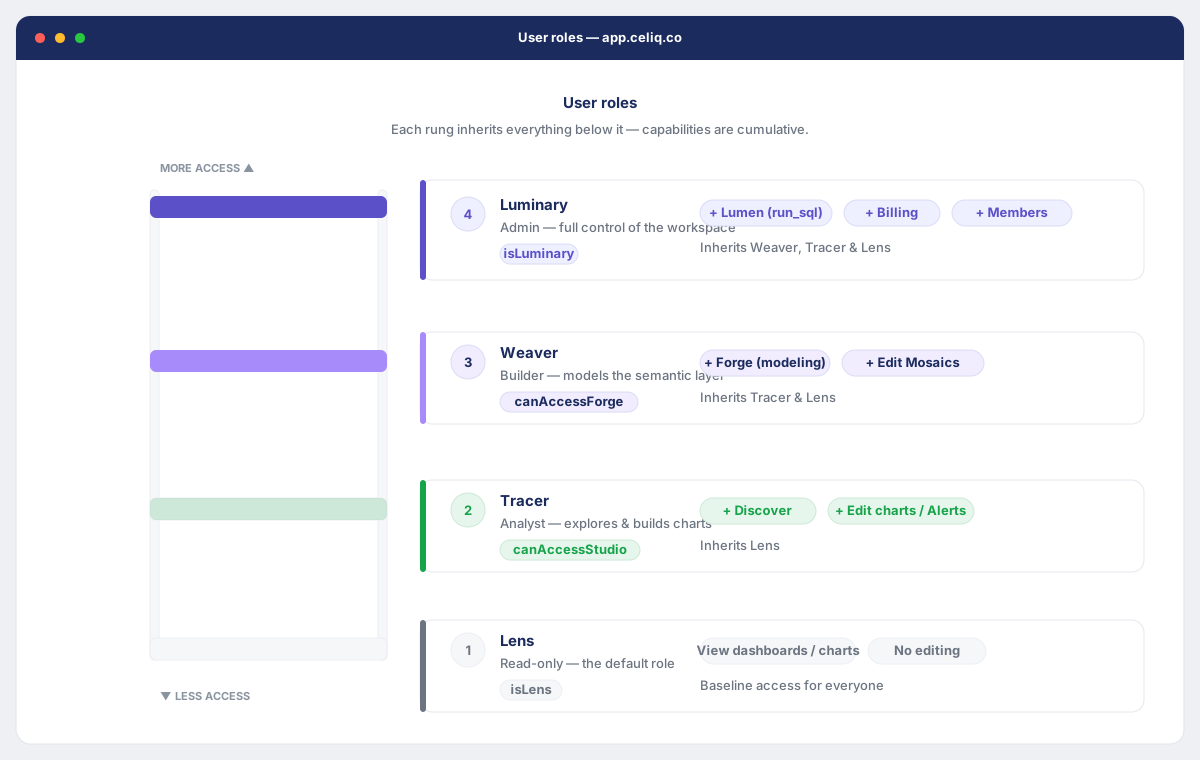
Celiq has four roles, ordered from most to least access:
| Role | Rank | In one line |
|---|---|---|
| Luminary | 4 | Admin — manages people, connections, billing, and everything below. |
| Weaver | 3 | Builder — models data, builds Prisms and Mosaics, edits charts. |
| Tracer | 2 | Analyst — explores, edits charts, runs alerts, signals, scenarios. |
| Lens | 1 | Read-only — views and reads, changes nothing. |
The roles are a ladder, not a set of disconnected buckets. A higher role can do everything a lower role can, plus more. So a Weaver can do everything a Tracer can; a Luminary can do everything a Weaver can. When the product checks access it asks "is this person at least a Tracer?" — anyone ranked Tracer or higher passes.
When to use it
Reach for this page whenever access is the question:
- Inviting someone — decide which role fits before you send the invite.
- A page or pill is missing — your role probably does not include it; this page tells you which role does.
- Someone needs more (or less) access — a Luminary can change their role at any time.
- Planning a workspace — most teams have one or two Luminaries, a few Weavers and Tracers, and Lens seats for stakeholders who only read.
Concepts
Role — One ofLuminary, Weaver, Tracer, or Lens. Each person has exactly one, scoped to the workspace.
Role hierarchy / rank — Each role has a numeric rank: Luminary 4, Weaver 3, Tracer 2, Lens 1. Access checks compare ranks, so "Tracer and above" means rank 2 or higher.
Capability gate — A named check the product uses to decide who can do something — for example "can access Forge" or "can edit charts." Each gate maps to a minimum role. The main gates are summarized below.
Workspace creator — Whoever creates a workspace is automatically made its first Luminary, so there is always at least one admin.
Getting started
You already have a role — it was set when you joined or created the workspace. To see or change roles:
- See your own role — open Lumen → Workspace settings. Your role is shown next to your name in the Members list, and there is a Role guide at the bottom of the page describing all four.
- Change someone's role — you must be a Luminary. Open the same page, find the member, and pick a new role from the dropdown next to their name.
- Invite a new member — Luminaries get an "Invite a member" form on that page where you choose the role as you send the invite.
Step-by-step
Open Workspace settings
From the bottom navigation, open the Lumen pill (visible to Luminaries) and go to Workspace settings. You land on the Workspace Members page.
Find the person
Scroll the Members list. Each row shows a name, email, and the person's current role. Pending invites show a pending badge.
Pick a new role (Luminary only)
Use the role dropdown on the member's row to choose Luminary, Weaver, Tracer, or Lens. The change saves immediately — no separate save button.
Or invite someone new
In Invite a member, enter their email, choose a role, and select Send invite. The role you pick is the role they get when they accept. Watch the seat counter — invites are blocked once you hit your seat limit.
Confirm with the Role guide
The Role guide section at the bottom of the page lists every role with a one-line description, so you can double-check you picked the right one.
Examples
Here is how the same person experiences Celiq differently depending on their role. Suppose a workspace has one connected warehouse and a few Mosaics.
- Maya (Luminary) sees every pill, including Lumen and Trash. She connects warehouses, invites teammates, changes roles, and can use View as to see the app exactly as another member sees it.
- Devin (Weaver) sees the Loom pill and opens Forge, Projects, and Studio to model data and build. He creates Mosaics and edits charts. He does not see Lumen or Trash.
- Priya (Tracer) does not see Loom, but she can open Studio features, edit charts in Discover, and use Alerts, Signals, Scenarios, and Shared Definitions.
- Sam (Lens) can open Discover and view Mosaics, but every chart editor and builder surface is read-only. Sam changes nothing.
The roles map onto a few clear capability gates in the product. This is the orientation-level summary:
| Capability | Lens | Tracer | Weaver | Luminary |
|---|---|---|---|---|
| View Discover, Mosaics, Catalog | yes | yes | yes | yes |
| Edit charts | — | yes | yes | yes |
| Access Studio | — | yes | yes | yes |
| Use Alerts, Signals, Scenarios, Shared Definitions | — | yes | yes | yes |
| Access Forge / Projects (build & model) | — | — | yes | yes |
| Manage people, connections, Lumen, Trash | — | — | — | yes |
For the exhaustive, page-by-page permission matrix, see Roles.
Best practices
- Default new analysts to Tracer. It is the most useful read-and-explore role without exposing the modeling layer.
- Keep Weaver for people who build. Forge and Projects change the shared semantic model, so reserve Weaver for those who should model data.
- Use Lens for stakeholders. Executives and partners who only consume dashboards fit Lens perfectly.
- Have at least two Luminaries. A workspace always has one admin, but a second avoids being locked out if one leaves.
- Right-size, don't over-grant. It is easy for a Luminary to raise someone's role later — start lower and promote when there is a real need.
Tips
Roles are cumulative. If you can already do something as a Tracer, you can still do it as a Weaver or Luminary — promoting someone never removes access, it only adds. To restrict a person, give them a lower role.
Common mistakes
- Expecting a Lens to edit. Lens is strictly read-only — chart editing and every builder surface are disabled. If someone needs to change a chart, they need at least Tracer.
- Giving everyone Luminary. Luminary can change roles, remove members, manage connections, and view billing. Limit it to true admins.
- Confusing Weaver and Tracer. A Tracer can explore and edit charts but cannot open Forge to change the data model. Only Weaver and Luminary can build in Forge.
- Forgetting the seat limit. Invites are blocked once your workspace is at its seat limit, regardless of role.
Troubleshooting
| Symptom | Likely cause | Fix |
|---|---|---|
| You don't see the Loom pill (Forge, Projects, Studio) | Loom requires Weaver or Luminary; you are a Tracer or Lens | Ask a Luminary to raise your role to Weaver if you need to build. |
| You don't see Lumen or Trash | Both are Luminary-only | Only Luminaries manage the workspace; ask an admin to act for you. |
| Chart editing controls are missing | You are a Lens (read-only) | Lens cannot edit charts. Ask a Luminary for Tracer or higher. |
| Opening Alerts/Signals/Scenarios shows "This action requires tracer role or higher" | The feature is gated to Tracer and above and you are a Lens | Request a Tracer (or higher) role. |
| A page returns "Account disabled" | Your account was disabled in the workspace | Contact a Luminary to re-enable your account. |
| The invite form is blocked and shows a seat-limit message | The workspace has reached its seat limit | A Luminary can contact sales to add seats, or free a seat by removing a member. |
Related pages
- Roles — the full permission matrix and how roles are enforced.
- Workspaces — how workspaces, members, and seats fit together.
- Data Keys — row-level data access on top of roles.
- Data Gates — column-level data controls.
- Navigation — the pills and menus your role unlocks.