Validation and the Check & Save gate
Run full project health checks in Validate mode and pass the Check & Save gate before your CML changes go live in Forge.
When to use it — Validate before a big review or release; the gate runs automatically every time you click Check & Save.
Where to find it — Both live inside a Forge project. Open Validate from the project, and the gate appears when you press ✓ Check & Save in the file editor toolbar.
Who can use it — Weavers and Luminaries. Only a Luminary can override a blocked save.
Forge gives you two ways to catch problems before they reach the people who consume your data. Validate mode is a project-wide health report you open on demand. The Check & Save gate is a per-file checkpoint that runs the moment you try to save, showing each check resolve like a CI build log and then deciding whether the save is allowed.
Neither surface touches your warehouse. Both reason over your modeling files (your parsed CML), so they are fast and safe to run as often as you like.
Overview
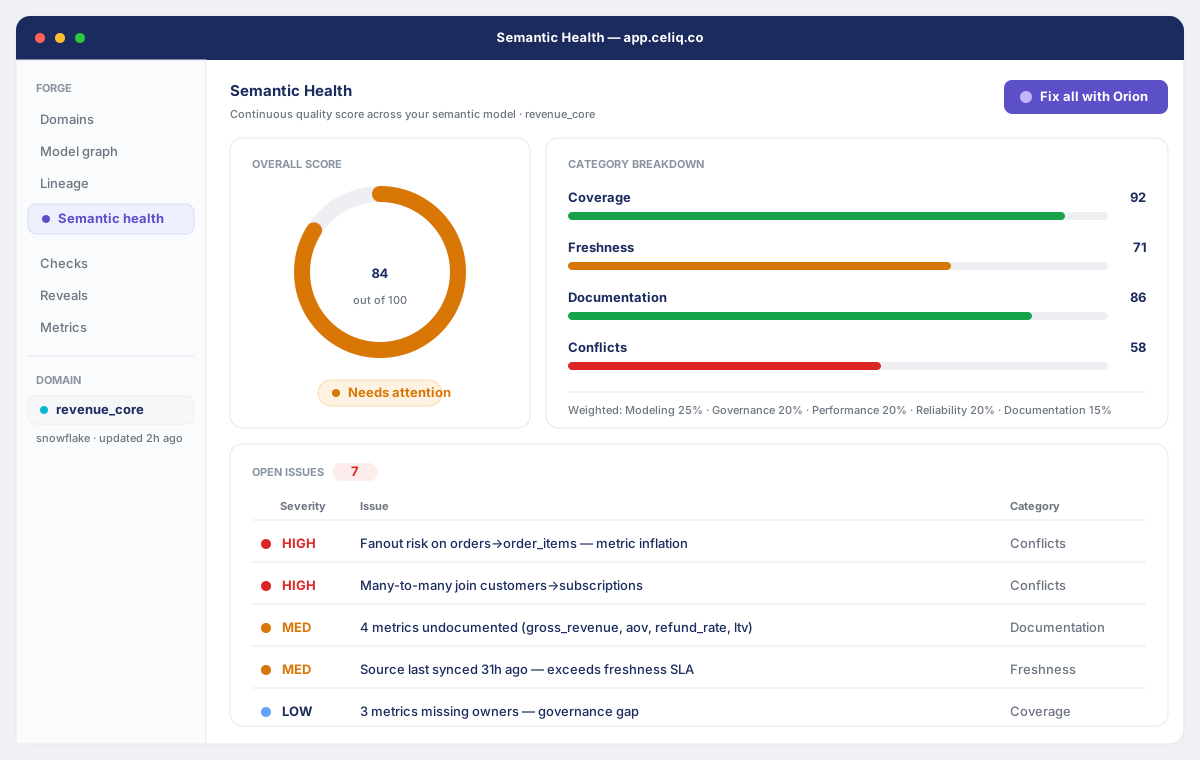
The two surfaces answer different questions:
- Validate mode answers "Is my whole project healthy right now?" It scans every node and domain in the project, returns a list of issues with severity, and gives you summary pills (valid / warnings / errors). Each issue card offers quick actions to fix it.
- The Check & Save gate answers "Is this one file safe to save?" When you click ✓ Check & Save on a file, the gate runs a fixed pipeline of semantic checks, reveals them one at a time, and ends in one of three verdicts that determine whether your change saves, saves with a warning, or is blocked.
Both rely on the same underlying idea: turn modeling problems into clear, actionable checks instead of letting them surface later as wrong numbers in a chart.
When to use it
- Before a review or release — run Validate mode to get a single list of everything that needs attention across the project.
- After Orion or a teammate makes changes — Validate mode confirms the project is still clean end to end.
- Every time you edit a file — the Check & Save gate runs automatically on save, so you do not have to remember to check.
- When a number looks wrong — the gate's Performance check flags fanout (metric inflation) before a bad join ships.
Concepts
| Term | What it means |
|---|---|
| Validate mode | A full-width project health page. Auto-runs when you open it and lists per-issue cards across all nodes and domains. |
| Issue severity | Each issue is error, warning, or valid. Errors are red, warnings amber, valid green. |
| Summary pills | The pill bar at the top of Validate mode: N valid, N warnings, N errors. |
| Check & Save gate | A modal that runs semantic checks before a single-file save and gates the save on the result. |
| Semantic check | One row in the gate — Validation, Performance, Governance, Lineage, or Impact — each with a status and a one-line detail. |
| Verdict | The gate's overall decision once all checks resolve: passed, passed_with_warnings, or blocked. |
| Blocking check | A check that can stop a save. Validation (parse) and Performance (fanout) are blocking; the others only warn. |
| Validation mode setting | A per-project setting — Strict, Warn, or Off — that controls how strict saves are. |
Getting started
You need a Forge project with at least one node or domain, and Weaver or Luminary access. To override a blocked save you must be a Luminary.
Open Validate mode
Switch the project to Validate. Validation runs automatically on open — you do not need to start it manually.
Or open a file to use the gate
In Build, select a file in the tree to load it into the editor. The ✓ Check & Save button sits in the editor toolbar for domain files.
Step-by-step
Validate mode
Open Validate mode
The page fetches GET /api/forge/validate/:projectId and shows a spinner with "Validating project…" while it works.
Read the summary pills
At the top you get the headline counts: a green valid pill, plus warnings and errors pills when those counts are above zero.
Work through the issue cards
Each issue is a card showing its severity icon, a bold message, an optional description, and — when available — the file and line it came from.
Fix an issue
On any non-valid card, click Fix with Orion to have Orion propose a fix, or Edit in Build to jump straight to the node or domain that owns the issue.
Re-validate
After making changes, click Re-validate (top right). The button shows "Running…" while it refreshes. When there are no issues, you get the All checks passed state.
The Check & Save gate
Click Check & Save
In the file editor toolbar, click ✓ Check & Save. The gate opens as a modal titled "Semantic Check ·
Watch the checks resolve
The gate reveals each check top to bottom — Validation, Performance, Governance, Lineage, Impact — each showing a spinner first, then resolving to pass, warn, or fail with a short detail line.
Read the verdict
Once every row resolves, the gate shows one of three banners and the matching actions:
- Semantic Check Passed — the gate auto-saves after a short beat; you do not need to click anything.
- Passed with warnings — choose Save anyway to save, or Review warnings to close the gate and go back.
- Blocked:
— the save is held. Choose Fix & Re-run, Cancel, or (Luminary only) Override & Save.
Resolve a block
Click Fix & Re-run to open the fix flow (for a fanout, this launches the fanout fix). Fix the issue, then run Check & Save again.
Examples
A common block is a fanout risk on the Performance check. If a join inflates a metric — for example, joining orders to order line items so revenue is counted once per line instead of once per order — the Performance check fails and the gate blocks the save with the reason Revenue Fanout.
The five checks the gate runs come straight from the semantic-check pipeline:
✓ Validation    CML parses, structure valid
✗ Performance   1 fanout risk — metric inflation        (blocking)
⚠ Governance    Governance score 62 — 3 metrics without owner
✓ Lineage       Metric lineage resolvable to source tables
⚠ Impact        14 mosaics · 38 users affected
In this run the verdict is blocked because Performance failed and is a blocking check. The Governance and Impact warnings on their own would only produce passed_with_warnings.
A clean run looks like this, and the gate saves on its own:
✓ Validation    CML parses, structure valid
✓ Performance   No fanout, date filters present
✓ Governance    Governance score 94 — 0 metrics without owner
✓ Lineage       Metric lineage resolvable to source tables
✓ Impact        Impact scope computed
Best practices
- Run Validate before you ask for review. A clean summary bar is the fastest way to show a project is ready.
- Treat fanout as a real stop. A fanout block means a metric is being double-counted — fix the join, do not override.
- Give every metric an owner. The Governance check warns when metrics have no owner; clearing those warnings keeps the score high.
- Use Fix with Orion for unfamiliar issues. It proposes a concrete change you can review rather than guessing.
- Set the right validation mode for the project. Use Strict on production-grade projects so saves are blocked when errors exist; use Warn while actively building.
Tips
A passing gate saves for you — once you see Semantic Check Passed, the save happens automatically after a brief pause. You do not need to click a save button.
Common mistakes
- Overriding a fanout block. Override & Save exists for edge cases, not for shipping inflated metrics. If Performance fails on fanout, fix the join first.
- Expecting the gate to query your warehouse. It does not. The checks reason over your CML, so they validate structure and modeling, not live row counts.
- Closing the gate on a warning and assuming it saved. "Passed with warnings" does not save until you click Save anyway — Review warnings just closes the modal.
- Forgetting that Override & Save is Luminary-only. Weavers see the button disabled with a tooltip; ask a Luminary if a justified override is truly needed.
Troubleshooting
| Symptom | Cause | Fix |
|---|---|---|
| Validate mode shows a red error banner instead of issues | The validate request failed (server error, or the project could not be loaded) | Click Re-validate; if it persists, confirm the project exists and you have access |
| Validation row fails with "Syntax error — cannot parse" | The CML could not be parsed, so the Validation check fails and the verdict is blocked | Fix the YAML/CML syntax in the editor, then run Check & Save again |
| Gate shows "Blocked: Revenue Fanout" | A fanout was detected on the Performance check — a join is inflating a metric | Click Fix & Re-run to launch the fanout fix, or correct the join manually |
| Override & Save is greyed out | You are not a Luminary; only Luminaries can override a blocking check | Ask a Luminary to review and override, or fix the blocking issue |
| Gate says "No checks to run." | No parsed content was available to check | Make sure a file is loaded in the editor before opening the gate |
| Saves are blocked even on warnings | The project's validation mode is set to Strict ("Saves are blocked when errors exist") | Adjust the project's validation mode in project settings if appropriate |