Lumen Admin Console
Orientation to Lumen, the Administration area where Luminary admins manage data, people, Orion, the workspace, and the account.
When to use it — When you need to connect a warehouse, manage who can do what, tune Orion, review workspace activity, or handle billing.
Where to find it — In the app, open Lumen from the navigation; every admin page lives under
/lumen/* (for example /lumen/connections, /lumen/users).Who can use it — Mostly Luminary (admin). Most admin actions are Luminary-gated, and one sidebar group is visible only to Luminary users.
Lumen is where you run your Celiq workspace. The sidebar is labeled Lumen under the Celiq logo, and it organizes admin work into a handful of clear groups so you can find the right control quickly.
This page is your map of the console: it lists every navigation group exactly as it appears in the app and explains what each one is for. The individual pages behind each link have their own detailed docs.
Overview
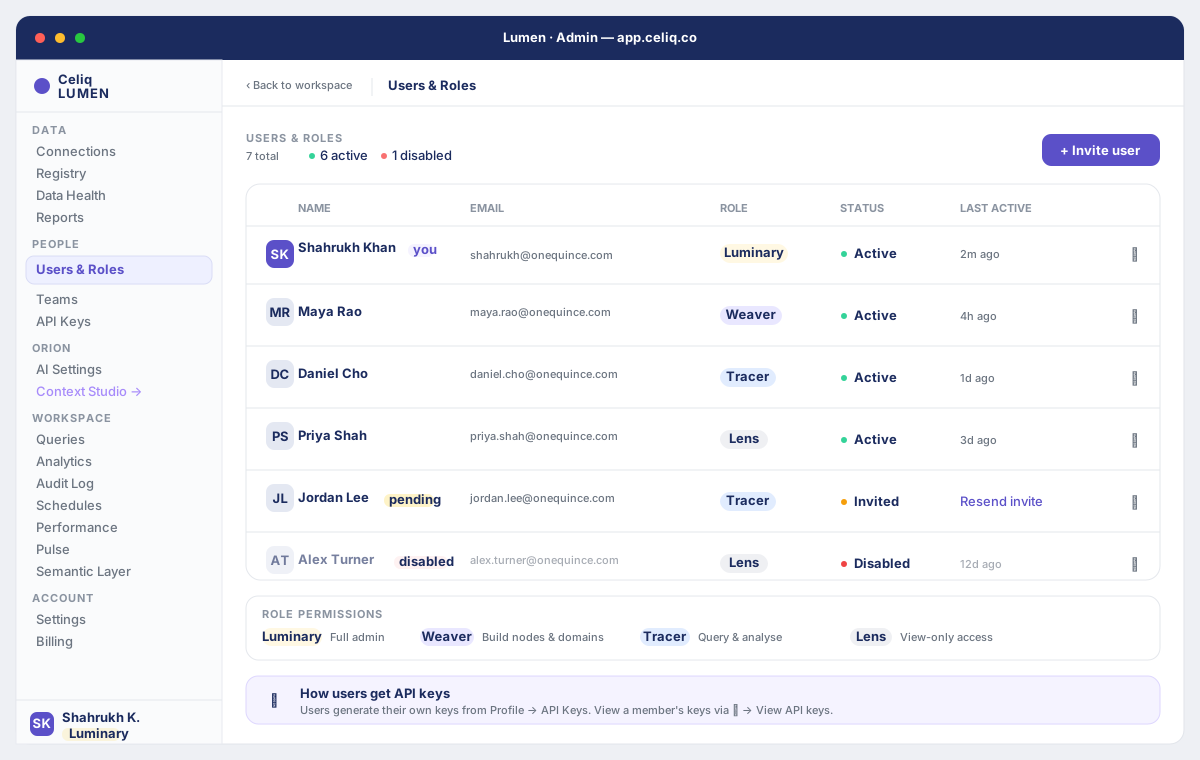
The Lumen sidebar is fixed on the left. At the top is the Celiq logo (clicking it returns you home) with a Lumen label beneath it. Below that, navigation is split into labeled groups. Selecting an item routes you to /lumen/<item> and shows that page in the main area.
The groups are:
| Group | Items |
|---|---|
| Data | Connections, Registry, Data Health, Reports |
| People | Users & Roles, Teams, API Keys |
| Orion | AI Settings, Context Studio (opens Context Studio) |
| Workspace | Queries, Analytics, Audit Log, Schedules, Performance, Pulse, Semantic Layer |
| Account | Settings, Billing |
| Admin | Data Security (Luminary only) |
The first five groups are always present. The Admin group — which contains Data Security — only appears when the signed-in user has the Luminary role. Non-Luminary users do not see it.
When to use it
Open Lumen whenever you need to administer the workspace rather than analyze data:
- Connect or manage a warehouse — Use the Data group.
- Add a teammate or change someone's role — Use the People group.
- Configure Orion or open Context Studio — Use the Orion group.
- Review what's running in the workspace — Use the Workspace group (queries, schedules, audit log, performance).
- Update workspace settings or billing — Use the Account group.
- Manage row/column data security — Use the Luminary-only Admin group.
Concepts
| Term | What it means |
|---|---|
| Lumen | The brand name for Celiq's Administration area. All its pages are routed under /lumen/*. |
| Nav group | A labeled cluster of related admin pages in the sidebar (Data, People, Orion, Workspace, Account, Admin). |
| Luminary-gated | An action or page available only to users with the Luminary (admin) role. |
| Context Studio | A separate Orion workspace, opened from the Orion group. The link leaves Lumen and navigates to Context Studio rather than rendering inside the console. |
Lumen is the workspace-level admin console. It is not the platform operator console. This page documents Lumen only.
Getting started
Prerequisites- A Celiq account in a workspace.
- The Luminary role for most actions. Lower roles may see some pages but cannot perform Luminary-gated actions, and they never see the Admin / Data Security group.
Open Lumen from the app navigation. Every admin page lives under /lumen/*. If you land on /lumen without a specific page, the console opens on Connections by default.
Step-by-step
Open Lumen
From the app navigation, go to the Administration (Lumen) area. The Lumen sidebar appears on the left with the Celiq logo and the Lumen label at the top.
Pick a group
Scan the sidebar groups — Data, People, Orion, Workspace, Account, and (for Luminary users) Admin — and choose the one that matches your task.
Select a page
Click an item, such as Connections under Data or Users & Roles under People. The URL updates to /lumen/<item> and the page loads in the main area.
Open Context Studio when needed
Under the Orion group, the Context Studio item is marked with an arrow because it leaves Lumen. Selecting it navigates you to Context Studio rather than rendering a page inside the console.
Manage Data Security (Luminary only)
If you are a Luminary, the Admin group appears at the bottom of the sidebar with Data Security. Use it to manage row- and column-level data protection for the workspace.
Examples
A new Luminary setting up a workspace typically moves top to bottom through the groups:
Data      → Connections      Connect the warehouse
Data      → Registry         Review the modeled tables
People    → Users & Roles    Invite teammates, assign roles
People    → Teams            Group people into teams
Orion     → AI Settings      Configure the AI layer
Workspace → Audit Log        Confirm activity is being recorded
Account   → Billing          Review the plan
Admin     → Data Security    Lock down sensitive rows/columns
Each step maps to a single sidebar click and a corresponding /lumen/<item> route — for example, Users & Roles opens /lumen/users, and Audit Log opens /lumen/audit.
Best practices
- Start in Data, finish in Admin. Connect and verify data first, then handle people, Orion, and finally security.
- Keep Luminary access tight. Because the Admin / Data Security group and most admin actions are Luminary-gated, grant the Luminary role only to people who truly need it.
- Use the Workspace group to stay aware. Check Audit Log, Queries, and Performance periodically to understand how the workspace is being used.
- Open Context Studio for deeper Orion work. Lumen's AI Settings covers configuration; Context Studio is where richer Orion context work happens.
Tips
The Context Studio item in the Orion group is a jump-off link, not an in-console page. Expect the view to change to Context Studio when you click it, then use your browser or app navigation to return to Lumen.
Common mistakes
Expecting Context Studio to open inside Lumen. It is an external link from the Orion group and navigates away from the console.
Troubleshooting
| Symptom | Cause | Fix |
|---|---|---|
| The Admin group and Data Security item are not in the sidebar | You are not signed in with the Luminary role | Sign in as a Luminary, or ask an existing Luminary to grant you the role in People → Users & Roles. |
| Clicking Context Studio leaves the admin console | This item is an external link from the Orion group by design | Use app navigation to return to Lumen; the rest of the Orion settings stay under AI Settings. |
Opening /lumen shows Connections instead of the page you expected | With no specific page in the URL, the console defaults to Connections | Navigate to the specific item (for example /lumen/users) from the sidebar. |
| An admin action is unavailable or refused | The action is Luminary-gated | Confirm you have the Luminary role; lower roles can view some pages but cannot perform admin actions. |