Context Studio overview
The intelligence layer over your semantic model and Orion — health score, KPIs, and the 6 nav groups that govern AI accuracy.
When to use it — When you want to see how trustworthy Orion's answers are, manage the context it relies on, and resolve the things that hurt accuracy.
Where to find it — Open it from the main navigation; it loads on the Overview tab inside its own sidebar (the brain icon labelled "Context Studio").
Who can use it — Luminary (admin) and Weaver (builder). Anyone below those roles cannot open the page. Certify, rebuild, recompute, and approve-correction actions are Luminary-only.
Context Studio brings everything that shapes Orion's understanding into one place: your domains, nodes, metrics, and dimensions; the natural-language context (topics, domain skills, Orion memory); the knowledge graph; and the quality signals (accuracy evals, corrections, certifications). The headline number is the Context Health score, a single 0–100 reading of how ready Orion is to answer accurately.
This page covers what Context Studio is, how it is laid out, and how to read the Overview tab. The individual tabs are documented on their own pages.
Overview
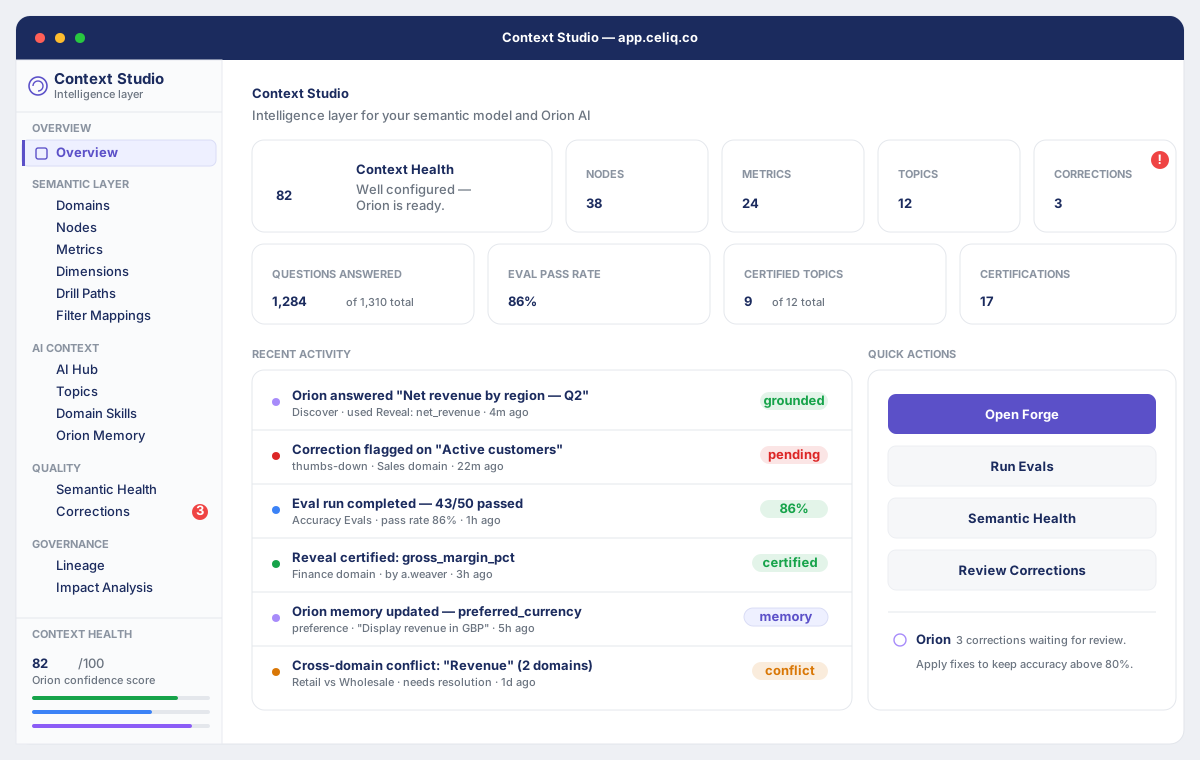
Context Studio is a three-pane workspace:
- Left sidebar — navigation grouped into six labelled sections, plus a live Context Health score pinned to the bottom.
- Center — the active tab's content (KPI tiles, tables, editors, and so on).
- Right info panel — contextual help for whichever tab you are on (collapsible).
The sidebar header reads "Context Studio — Intelligence layer for your semantic model." Tabs that carry an outstanding count (for example Corrections or Cross-Domain) show a number badge, and an alert badge turns red when there is something to act on.
When to use it
Open Context Studio when you need to:
- Check Orion's readiness before relying on it for important questions — read the Context Health score and its three component bars.
- Manage the semantic context that Orion uses — review metrics, domains, topics, domain skills, and Orion memory.
- Investigate accuracy — run accuracy evals, review corrections users have submitted, and resolve cross-domain metric conflicts.
- Govern the model — inspect lineage, run impact analysis, review usage, and manage certifications.
If you are still defining the semantic model itself (writing CML, adding reveals), that work happens in Forge. Context Studio is where you observe and govern the intelligence layer that sits over it.
Concepts
| Term | What it means |
|---|---|
| Context Health | A composite 0–100 score of how ready Orion is to answer accurately, made of three weighted components (see below). Shown in the sidebar and on the Overview tab. |
| Certified reveals | Metric definitions (reveals) that a Luminary has marked production-ready. Orion prefers certified reveals over uncertified ones. |
| Eval pass rate | The pass rate of the most recent accuracy-evaluation run for the workspace. |
| Corrections | Feedback users submit when Orion gets something wrong; counts as resolved once a skill fix is applied or the correction is dismissed. |
| Topics | Curated natural-language entries that teach Orion what to talk about; they can be certified. |
| AI Hub | The activity view summarising questions answered, eval pass rate, certified topics, and certifications. |
How Context Health is calculated
The score is the sum of three components, each capped at its own maximum:
| Component | Max | Based on |
|---|---|---|
| Certified reveals | 40 | Share of your reveals that are certified (certified ÷ total × 40) |
| Eval pass rate | 40 | Pass rate of the latest accuracy-eval run (pass rate ÷ 100 × 40) |
| Corrections | 20 | Share of corrections resolved; no corrections at all scores the full 20 |
In the sidebar the score shows as NN / 100 labelled "Orion confidence score," with a coloured bar for each component (green = certified reveals, blue = eval pass rate, purple = corrections). The number is colour-coded: green at 80 and above, amber from 60 to 79, red below 60.
Getting started
Prerequisites- A role of Weaver or Luminary. Tracer and Lens cannot open Context Studio.
- A semantic model with at least one domain and some reveals, so the health components have data to measure.
From the main navigation, select Context Studio (the brain icon). It opens on the Overview tab. Use the left sidebar to move between tabs; the score at the bottom of the sidebar updates as your context changes.
Step-by-step
Open Context Studio
From the main navigation, click Context Studio. The page loads on the Overview tab with the sidebar on the left and the Context Health score at its foot.
Read the Context Health score
Look at the large score at the top of Overview (and at the bottom of the sidebar). Check the three component bars to see which area is pulling the score down — certified reveals, eval pass rate, or corrections.
Scan the KPI tiles
Below the score, review the count tiles — Nodes, Metrics, Topics, and Corrections. The Corrections tile turns red when there is at least one unresolved correction.
Review the AI Hub stats
A second row of tiles shows Questions answered (of total), Eval pass rate, Certified topics (of total), and Certifications. These come from the AI Hub overview.
Act with a quick action
Use the quick-action buttons at the bottom of Overview — Open Forge, Run Evals, Semantic Health, or Review Corrections — to jump straight to the work that will move the score.
Use the right info panel
Each tab has a contextual help panel on the right explaining what it does and how to use it. Collapse it once you know your way around.
Examples
The Overview tab is data-driven from two backend endpoints. The first returns the Context Health score and its breakdown:
{
  "score": 84,
  "components": {
    "certifiedReveals": { "score": 32, "certified": 12, "total": 15 },
    "evalPassRate":     { "score": 36, "passRate": 90, "runsExist": true },
    "corrections":      { "score": 16, "resolved": 8, "total": 10 }
  }
}
Here the score of 84 (green) breaks down as 32/40 certified reveals + 36/40 eval pass rate + 16/20 corrections. To push it higher you would certify the remaining 3 reveals and resolve the 2 outstanding corrections.
The second endpoint feeds the AI Hub stat row on Overview:
{
  "accuracy": 90,
  "questions_answered": 142,
  "questions_total": 156,
  "questions_failed": 7,
  "corrections_pending": 2,
  "corrections_applied": 8,
  "topics_total": 24,
  "topics_certified": 19,
  "certifications": 12,
  "eval_pass_rate": 90
}
The six navigation groups
The sidebar organises 23 tabs into six groups (the AI Operations tab appears only for Luminaries, so Weavers see 23):
| Group | Tabs |
|---|---|
| Overview | Overview |
| Semantic Layer | Domains, Nodes, Metrics, Dimensions, Drill Paths, Filter Mappings |
| AI Context | AI Hub, Topics, Domain Skills, Skill Registry, Orion Memory, Prompt Library |
| Knowledge | Business Glossary, Knowledge Graph |
| Quality | Semantic Health, Accuracy Evals, Corrections, Cross-Domain |
| Governance | Lineage, Impact Analysis, Usage, AI Operations (Luminary-only), Certifications |
Best practices
- Treat 80+ as the target. Below 60 the score is red and Orion is more likely to answer inaccurately; aim to keep it green.
- Certify your most-used reveals first. Certified reveals are worth up to 40 points and Orion prefers them, so they move the score and accuracy together.
- Keep the corrections queue at zero. An empty queue scores the full 20 points; let it grow and the score drops while real accuracy problems pile up.
- Re-run evals after meaningful changes. The score reflects the latest eval run, so a stale run can mask the impact of recent model changes.
- Watch the badge counts. The red badges on Corrections and Cross-Domain are your shortlist of things actively hurting Orion.
Tips
The quick-action buttons on Overview are the fastest path to raising the score: Run Evals refreshes the eval-pass-rate component, Review Corrections clears the corrections component, and Open Forge takes you to where reveals get certified.
Common mistakes
- Confusing the two scores. Context Health is about Orion's readiness; the Workspace Intelligence Score is a different, broader measure. Improving one does not directly move the other.
- Expecting Weaver to certify. Certify, rebuild, recompute, and approve-correction are Luminary-only. A Weaver can open every tab but those privileged controls are hidden, so the related score components only move once a Luminary acts.
- Reading the score before evals have run. With no eval run for the workspace, the eval component is 0, which can make a healthy model look unready. Run an eval to get an accurate reading.
Troubleshooting
| Symptom | Cause | Fix |
|---|---|---|
| Sidebar shows "Computing…" then "Couldn't load" instead of a score | The health endpoint failed to return components | Reload the page; if it persists, check warehouse and database connectivity for the workspace. |
| Context Health looks low despite a solid model | No accuracy-eval run exists yet, so the 40-point eval component is 0 | Go to Accuracy Evals (or the Run Evals quick action) and run an evaluation. |
| AI Hub stat tiles don't appear on Overview | The AI Hub overview endpoint returned nothing for the workspace | Confirm the workspace has AI activity; the tiles render only once that data is available. |
| Corrections tile is red | There is at least one correction that is neither dismissed nor has a skill fix applied | Open Corrections and resolve each item (a Luminary applies the fix or dismisses it). |
| Certify / rebuild / recompute buttons are missing | You are signed in as a Weaver; those actions are Luminary-only | Ask a Luminary to perform the action, or sign in with a Luminary account. |
Related pages
- Forge — where you build and certify the semantic model the score measures
- Orion — the AI analyst that Context Studio governs
- Workspace Intelligence Score — the separate, broader workspace-maturity measure
- Semantic Health — the Quality-group tab behind the eval and certification signals
- AI Hub — the activity view that feeds the Overview stat tiles
- Corrections — review and resolve the feedback that drives the corrections component