Create Topics
Group related metrics and dimensions into a governed Topic so Orion and your team navigate the semantic model by business area
Time: About 10 minutes.
You'll need: Some metrics and dimensions already modeled, plus a clear business area to group.
Role: Weaver or Luminary (only Luminaries can certify).
A Topic is a curated bundle of related semantic objects that gives Orion grouped context for one business area — for example "Revenue Analysis" or "Customer Retention". In this tutorial you'll create a Topic, add the objects that belong in it, and certify it so the whole organization can rely on it.
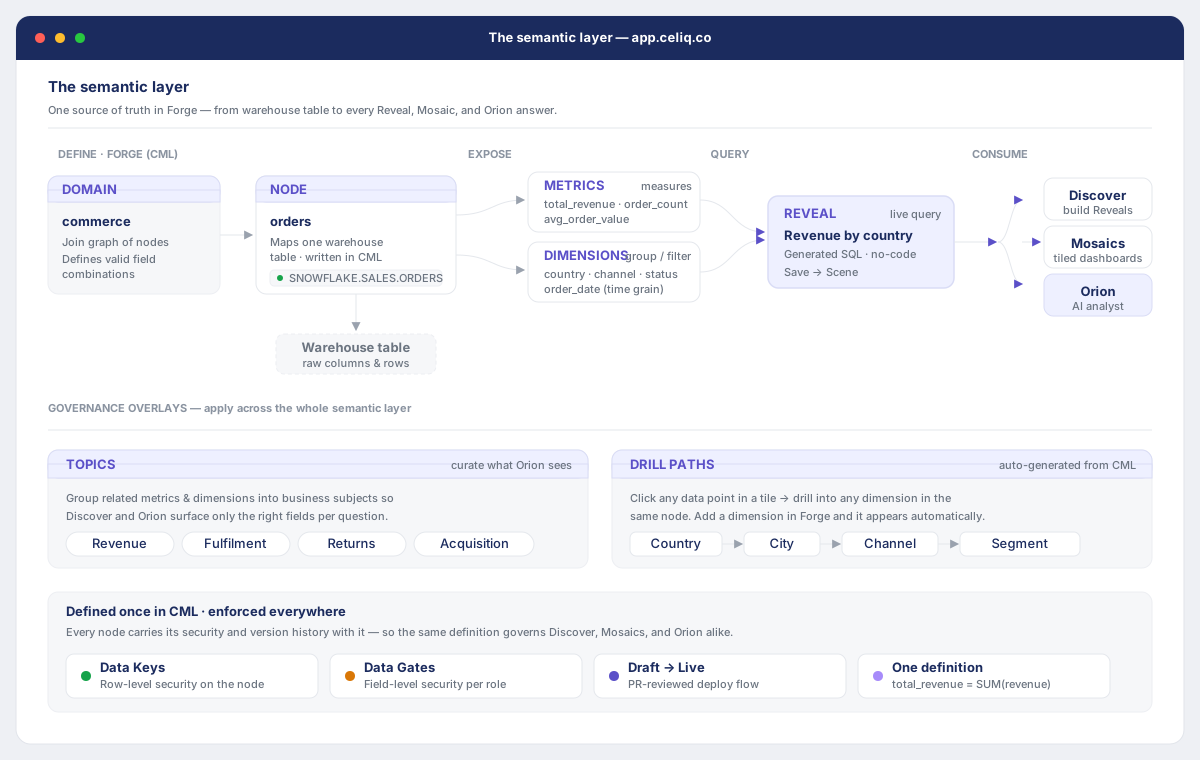
Before you start
- You have a Weaver or Luminary role. Both can create and edit Topics; only Luminaries can certify.
- You already have some semantic objects modeled — metrics and dimensions — so you have things to bundle. See Metrics and Dimensions.
- You know which business area you're grouping and the questions it should answer. Background: Topics.
Steps
Open Topics in Context Studio
Go to Context Studio, then in the left nav choose Topics (the tag icon). You'll see the list of existing Topics, each with its status badge and item count.
Start a new Topic
Click + New topic. An inline form opens.
Name the Topic
Enter a clear Topic name, for example Revenue Analysis. The name is required — you cannot save without one.
Describe what it answers
In the Description field, write what questions this Topic helps answer. It's optional but strongly recommended — it's the context Orion and your teammates read to understand the Topic's purpose.
Create the Topic
Click Create topic. The new Topic appears at the top of the list with a draft status badge.
Add items
Add the semantic objects that belong in this Topic. Each item points at one object by its type and id, and is given a role. Mark the central metric with the role primary; if you don't set a role, the item is saved as supporting.
Certify when ready (Luminary only)
Once the Topic is reviewed and trusted, a Luminary clicks Certify. The status changes to certified, the card border turns green, and Celiq records who certified it and when.
Result
Your Topic appears in the Topics list with an accurate item count, and Orion treats the bundle as a coherent group when answering questions about that business area. Once a Luminary has certified it, the Topic shows a green certified badge — the signal that the organization can trust it.
Use the item count badge as a quick health check. A certified Topic with zero items means the bundle was never populated — open it and add the objects it should group.
Next steps
- Layer hierarchical exploration onto the same nodes with Configure Drill Paths.
- Teach Orion your team's vocabulary with Build a Business Glossary.
- See how objects connect across the model with Use the Knowledge Graph.