Prisms
A Prism is a saved Reveal that re-runs against live data — save it, run it, schedule it, pin it to a Mosaic, and share it.
When to use it: When you have a single, focused question you want to keep, share, schedule, or pin to a Mosaic.
Where to find it: Prisms live inside Vaults. Open Vaults from the left nav to browse them, or open a single Prism directly at its own URL.
Who can use it: Tracers, Weavers, and Luminaries. Saving, editing, renaming, and deleting a Prism require the Weaver role or above.
A Prism saves the question, not the answer. When you save a Reveal as a Prism, Celiq stores the query state, the visualization type, and the chart configuration. Every time the Prism is opened or run, the query executes fresh against your warehouse — so the numbers are always current, but the analysis is fixed.
Prisms are the unit you reuse across Celiq. You save a Prism once, then run it, schedule its delivery, pin it onto a Mosaic, duplicate it as a starting point, or copy a link for a colleague.
Overview
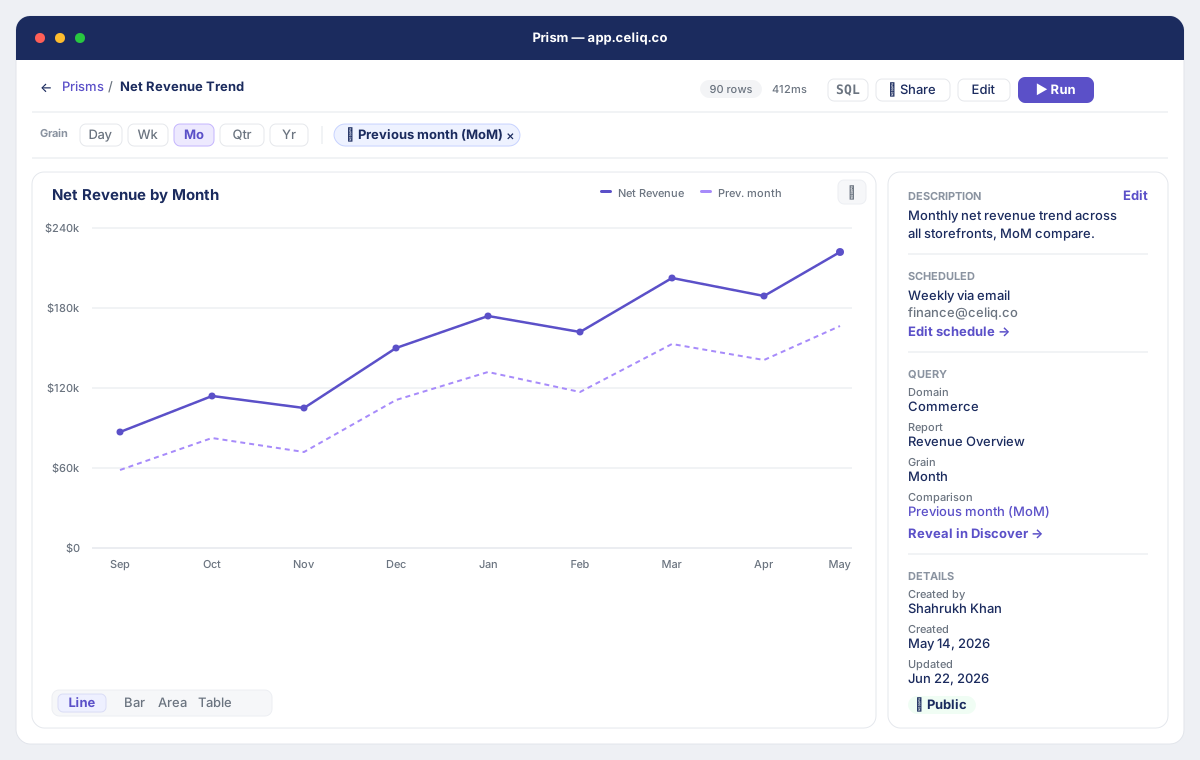
A Prism is built from three things saved together:
- Query state — the domain, Reveal, selected metrics and attributes, filters, grain, and any calculated columns from Discover.
- Visualization type — the chart type the Prism opens with (bar, line, table, and so on).
- Chart configuration — the per-chart settings (axes, series, formatting) you set in the configure panel.
Because the query runs live, there is no "last refreshed" timestamp to manage. Data Keys and Data Gates are enforced when the Prism runs, using the permissions of the person running it — so a Tracer with restricted row access and a Luminary can open the same Prism and correctly see different results.
Prisms are organized into Vaults. The standalone /prisms list now redirects to Vaults, where each Prism appears alongside the other Vault items. Opening an individual Prism takes you to its detail view, where you can run it, override the grain and comparison, reconfigure the chart, inspect the SQL, edit the description, set up a schedule, and copy a share link.
When to use it
Save a Reveal as a Prism when you want to:
- Keep a question you'll come back to — a metric you check weekly, a breakdown you reference often.
- Hand a specific analysis to a colleague — copy a link rather than describing what to build.
- Feed a dashboard — pin the Prism to one or more Mosaics as a live tile.
- Automate delivery — have Celiq email or message the result on a schedule.
- Start from something close — duplicate an existing Prism and adjust it.
If you find yourself wanting several questions side by side in one view, that is the signal to build a Mosaic and pin your Prisms to it.
Concepts
| Term | What it means |
|---|---|
| Prism | A saved Reveal: query state + visualization type + chart configuration, re-run live on open. |
| Reveal | The query you build in Discover. Saving a Reveal is what creates a Prism. |
| Vault | The container Prisms live in. New Prisms land in your personal Vault unless you choose another. |
| Grain | The time bucket the query rolls up to — Day, Week, Month, Quarter, or Year. |
| Comparison | An optional period-over-period overlay (previous period, week over week, year over year). |
| Pin | Placing a Prism onto a Mosaic as a live tile. One Prism can be pinned to many Mosaics. |
| Schedule | A recurring delivery of the Prism by email, Slack, or Teams. |
| Trash | Where deleted Prisms go. Deletion is soft — a Luminary can restore from Trash. |
Getting started
You need an existing Reveal to save. Build or open one in Discover first, then save it as a Prism.
To browse the Prisms you already have, open Vaults from the left navigation. Each Prism card shows its name, description, visualization type, how many Mosaics it is pinned to, and when it was created. Click a card to open the Prism's detail view.
Step-by-step
Save a Reveal as a Prism
Build your Reveal in Discover
Open Discover and get the query right — pick your metrics and attributes, apply filters, set the grain, and choose the chart type you want the Prism to open with.
Save it as a Prism
Use the save action in Discover to save the current Reveal. Celiq captures the query state, the visualization type, and the chart configuration together.
Name it and choose a Vault
Give the Prism a clear name and, optionally, a description. Choose which Vault to save it in. If you do not pick one, the Prism is saved to your personal Vault.
Open it from Vaults
The new Prism appears in the chosen Vault. Click its card to open the detail view, where it runs automatically against live data.
Work with a Prism from its card
Each Prism card has a ⋮ menu with these actions:
Open in Discover
Re-opens the saved query in Discover so you can change fields, filters, or chart type and re-save.
Rename
Opens the Rename Prism dialog. Type a new name and click Save.
Duplicate
Creates an independent copy named "
Pin to Mosaic
Opens the Pin to Mosaic dialog. Choose an Existing Mosaic or switch to the + New Mosaic tab to create a fresh Draft Mosaic and pin the Prism to it in one step. The pinned tile stays linked to the Prism.
Schedule Delivery
Opens the schedule dialog so Celiq sends this Prism automatically. See Scheduling for the full options.
Move to Vault
Opens the Move to Vault dialog. Pick a destination Vault and click Move.
Copy Link
Copies a direct link to the Prism to your clipboard so you can paste it into Slack, email, or a doc.
Delete
Moves the Prism to Trash. Deletion is soft — a Luminary can restore it from Trash later.
To act on several Prisms at once, hover a card and use the checkbox in the top-left corner. A bulk action bar appears with Select all and Move to Trash.
Use the Prism detail view
Run the query
The Prism runs automatically when you open it. Click ▶ Run in the top bar to re-run at any time. While running you see a spinner; when it finishes, the row count and query duration appear in the top bar.
Change the grain
Use the Grain pills — Day, Wk, Mo, Qtr, Yr — to re-roll the data to a different time bucket. The query re-runs immediately. This override is for your current session and is not saved back to the Prism.
Add a comparison
Click ⇄ Add comparison and pick an option for the current grain — for example Previous period, Week over week, or Year over year. The available choices depend on the grain. Remove the comparison with the × on its chip. Like the grain, comparison is a session-level override.
Configure the chart
Hover the chart and click the ⚙ gear to open the configure panel (the embedded Discover editor's ChartConfigurePanel). Adjust the chart type and settings, then Save. Unlike grain and comparison, chart configuration is persisted to the Prism.
Inspect the SQL
Click SQL in the top bar to open the generated-SQL drawer for the last run. Use Copy to copy it.
Edit the description
In the right panel, click Edit next to Description, type, and Save. The description is what colleagues read on the card.
Share or edit
Click 🔗 Share to generate and copy a public share link. Click Edit in the top bar (or Reveal in Discover → in the right panel) to re-open the underlying query in Discover.
Examples
Suppose you build a Reveal in Discover for daily order revenue by region, choose a bar chart, and save it as a Prism named "Daily Revenue by Region." Its saved query state looks like this:
{
  "domain_name": "sales",
  "reveal_name": "orders",
  "grain": "day",
  "selected_metrics": [
    { "node": "orders", "metric": "revenue" }
  ],
  "selected_attributes": [
    { "node": "orders", "attribute": "region" },
    { "node": "orders", "attribute": "order_date" }
  ],
  "filters": []
}
When you open the Prism, it auto-runs at the saved day grain. To review the same metric weekly with a year-over-year overlay, click the Wk grain pill, then ⇄ Add comparison → Year over year — the query re-runs and the chart updates, all without changing the saved Prism. To make that view permanent, click Edit to re-open it in Discover, change the grain there, and re-save.
If you then want this on a team dashboard, use ⋮ → Pin to Mosaic, create a new Mosaic called "Sales Daily," and the Prism appears as a live tile that refreshes whenever the Mosaic is viewed.
Best practices
- Name for the question, not the chart. "Weekly active accounts" reads better than "Bar chart 3."
- Write a description. It is the first thing a colleague sees on the card and tells them what the Prism answers.
- Use grain and comparison to explore, then re-save in Discover to make a view stick. Pill overrides are session-only by design.
- Duplicate before experimenting if others rely on a Prism — edit the copy, leave the original intact.
- Pin instead of re-creating. If two dashboards need the same metric, pin the one Prism to both Mosaics so edits propagate.
- Rebuild ad-hoc SQL Prisms from a Reveal. Reveal-based Prisms have row- and field-level policies applied automatically; raw-SQL Prisms are restricted.
Tips
The grain and comparison pills on the detail view are session-level — they let you slice the data on the fly without touching the saved Prism. When you find a view worth keeping, click Edit to re-open it in Discover and re-save. Chart configuration set with the ⚙ gear, on the other hand, is saved back to the Prism.
Common mistakes
- Expecting grain or comparison changes to persist. They are session overrides. Re-save from Discover to keep them.
- Deleting a Prism that is pinned to Mosaics. Deletion moves the Prism to Trash; tiles pinned to it will no longer resolve. Remove those tiles from the Mosaic, or restore the Prism from Trash (Luminary only).
- Assuming a copied link grants access. A link only works for people who can reach the Prism. Use 🔗 Share to generate a public share link when you need to share beyond your workspace.
- Saving raw-SQL Prisms for shared use. Prisms that run ad-hoc SQL are restricted to admins because row- and field-level policies cannot be applied to them. Rebuild from a Reveal instead.
Troubleshooting
| Symptom | Cause | Fix |
|---|---|---|
| Prism not found | The Prism was deleted or is not in your workspace and is not public. | Check Trash (a Luminary can restore), or confirm you have access to its Vault. |
| Query failed with a "Re-save" hint | The Prism is missing its report reference (its query state lost the Reveal or node). | Click Open in Discover to re-save → on the error, rebuild the query, and save again. |
| Error mentioning ad-hoc SQL restricted to admins | The Prism stores raw SQL, so row/field policies can't be enforced for non-admins. | Rebuild the Prism from a Reveal so Data Keys and Gates apply, or have a Luminary run it. |
| No connection found. Add a connection in Admin → Connections. | Celiq could not resolve a warehouse connection for the Prism's domain. | Add or fix the domain's connection under Admin → Connections, then re-run. |
| Connection credentials are not configured. Re-enter them in Admin → Connections. | The resolved connection is missing a username/password or service-account JSON. | Re-enter the connection credentials, then re-run. |
| Edits, rename, or delete don't take effect | These actions require the Weaver role or above. | Ask a Weaver or Luminary to make the change. |
Related pages
- Discover — build the Reveal you save as a Prism
- Mosaics — pin Prisms as live tiles on a dashboard
- Scheduling — automate recurring delivery of a Prism
- Sharing — share a Prism with colleagues and beyond
- Chart configuration — settings behind the ⚙ configure panel