Monitor Semantic Health
Open the Semantic Health view, read the score and issue list, then apply fixes and recompute to bring your semantic layer back into the green
Time: ~5 minutes
You'll need: A workspace with a connected warehouse and some modelled nodes
Role: Weaver or Luminary (only Luminary can run Recompute)
Semantic Health turns "is my semantic layer in good shape?" into a 0-100 score and an itemized checklist. By the end of this tutorial you'll know how to read the score, work the issue list by severity, apply the suggested fixes, and recompute to confirm the score moved.
Before you start
- Confirm your workspace has a connected warehouse and at least one modelled node — there is nothing to score on an empty model.
- Have the Weaver or Luminary role. Both can view the score; only a Luminary can run Recompute. See Semantic Health.
- Know where to apply fixes: Forge for descriptions and certifications, and Certifications for reveal certification.
Steps
Open the Semantic Health tab
From the main navigation, go to Context Studio. In the left sidebar, find the Quality group and click Semantic Health.
Read the score band
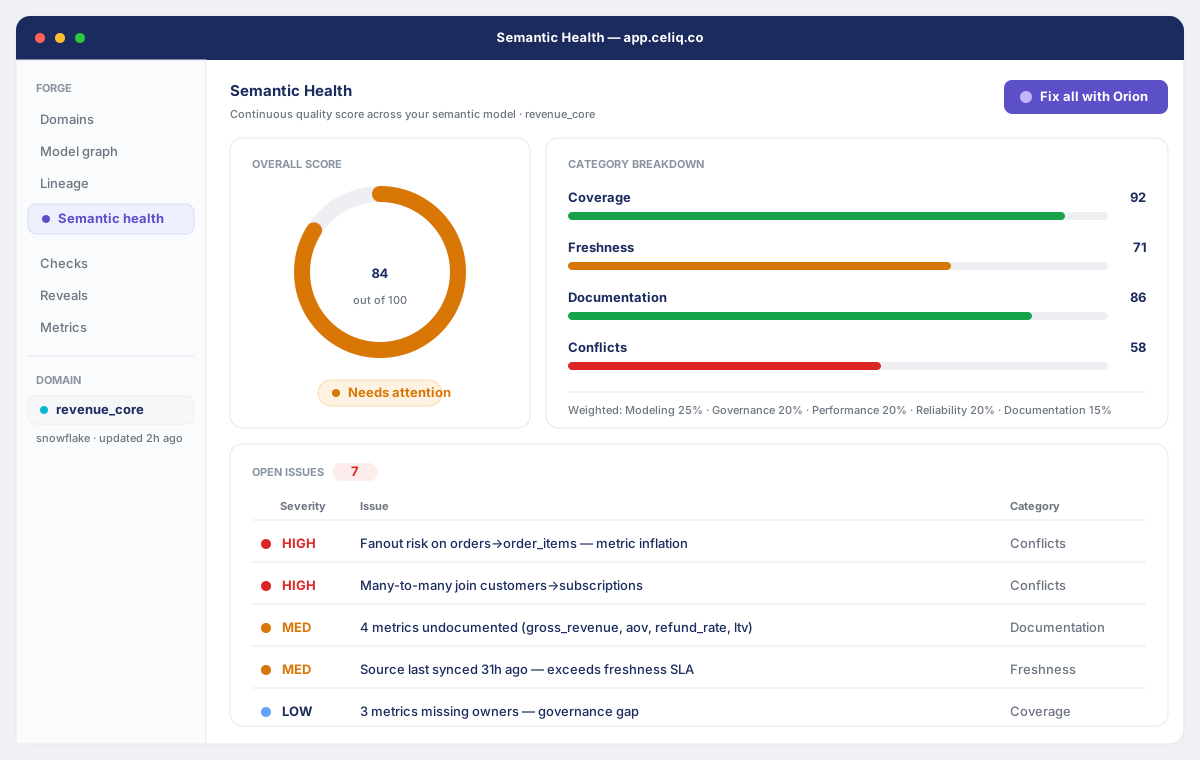
Read the big number on the score card, labelled Health score / 100. Green (80+) is healthy; amber (60–79) means there is room to improve; red (below 60) means the model needs attention before you rely on it.
Scan the summary stats
Check the four cards next to the score — Nodes, Reveals, Certified, and Issues. Compare Reveals against Certified: a large gap means many reveals are uncertified, which is the heaviest score penalty. A non-zero Issues count tells you how many rows to work through.
Work the issue list by severity
Start with error rows (red), then warning (amber), then info (grey). Each row's message states exactly what is wrong — for example, a named node with no description, or the number of uncertified reveals.
Apply the suggested fix
Read the fix line under each issue and follow it. Fixes point you to the right place — Forge to add a description or certify reveals, Context Studio → Drill Paths to add exploration guidance, or Quality → Corrections to clear pending corrections.
Recompute (Luminary only)
After a batch of fixes, a Luminary clicks Recompute in the section header. It re-runs the analysis and refreshes the score, stats, and issue list; the button reads "Computing…" while it runs. If you do not see the button, you are not a Luminary — ask one to recompute after your fixes.
Result
The cleared issues drop off the list and the score climbs — typically from an amber band back into the green once you certify reveals and add node descriptions. When nothing is wrong, the issue list is replaced by a green "No issues found — Your semantic layer is well-configured." state. The score and stats are computed fresh every time the tab loads, so a reload always reflects the live workspace.
Next steps
- Use Alerts — get notified when a governed metric crosses a line you care about.
- Set Up the Weekly Brief — get a Monday summary of how the business read.
- Certifications — certify reveals to lift the score and Orion's confidence.