Use the Knowledge Graph
Explore the graph of semantic objects and relationships to see how entities connect, confirm an object is represented, and spot missing edges
Time: About 10 minutes.
You'll need: At least one reveal or mosaic built, so the graph has relationships to derive.
Role: Luminary or Weaver (only a Luminary can run Rebuild graph).
The semantic Knowledge Graph records each modeling object as a node grouped by its type and the edges that connect them — for example a reveal that depends_on a node, or a mosaic that uses a reveal. In this tutorial you'll explore the graph, check that an object is represented, and rebuild the derived edges so Lineage and Impact Analysis stay accurate.
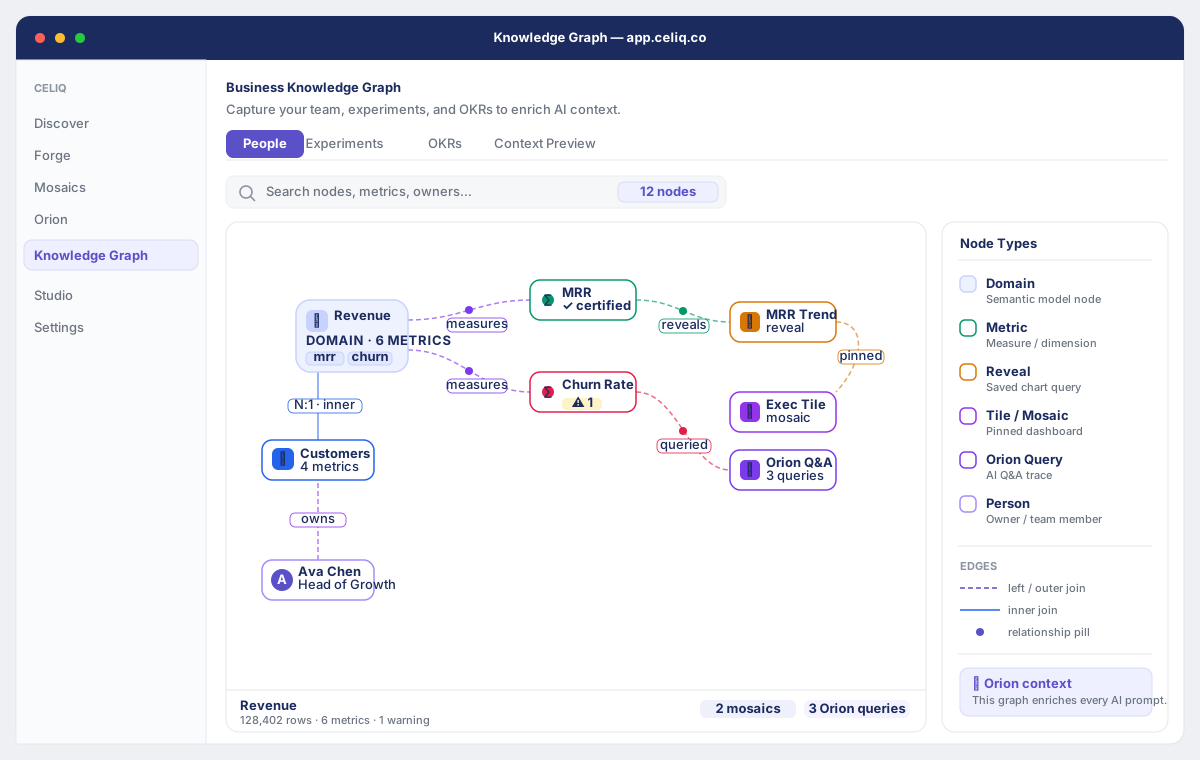
This is the semantic Knowledge Graph in Context Studio. It is not the Business Knowledge Graph of People, Teams, Goals, and OKRs that lives at Knowledge Graph under Building — different feature, different data.
Before you start
- You're signed in as a Luminary or Weaver. Lens and Tracer don't have access to Context Studio.
- You've built at least one reveal or mosaic, so there are relationships for the graph to derive. See Reveals and Mosaics.
- Background: Semantic Knowledge Graph.
Steps
Open the Knowledge Graph tab
From the main navigation, go to Context Studio, then in the sidebar click Knowledge Graph. The subtitle reads "Object relationships tracked across your semantic layer." While it loads you'll see "Loading graph…".
Read the object groups
Objects are grouped under an uppercase type heading with a count, for example REVEAL (12). Each chip under a heading is one object, labelled with its object id.
Confirm an object is represented
Find the object you care about under its type heading. If it isn't listed, its edges haven't been derived since you saved it — that's the signal to rebuild.
Handle an empty graph
If you see "Graph is empty.", no relationships have been derived yet. It "populates as you create mosaics, reveals, and configure connections." Build something, or have a Luminary rebuild to scan now.
Rebuild the graph (Luminary only)
If you're a Luminary, click Rebuild graph in the top-right. The button shows "Rebuilding…" while it runs, re-deriving depends_on (reveal → node) and uses (mosaic → reveal) edges from your current reveals and mosaics.
Confirm completion
When the rebuild finishes, a green Rebuilt indicator appears briefly and the object listing refreshes with the regenerated set.
Result
The graph lists every object that participates in at least one relationship, grouped by type. An object you just built now appears under its heading, which means its Lineage and Impact Analysis will reflect the current model. Verify by opening Lineage or Impact Analysis for that object — the inbound and outbound edges should match what you expect.
depends_on and uses edges by re-scanning your existing reveals and mosaics. It doesn't change, delete, or create any reveals, mosaics, or nodes.Next steps
- Bundle the connected objects into governed groups with Create Topics.
- Trace what feeds an object and what would break with Lineage and Impact Analysis.
- For the People/Teams/Goals/OKRs graph, see Business Knowledge Graph.