AI Hub
The live intelligence-activity feed in Context Studio, with accuracy stats, source filters, and a pending-corrections queue you can act on.
When to use it — When you want a single glance at how the AI is performing, what it has been asked recently, and which corrections are waiting for review.
Where to find it — Open Context Studio and select the AI Hub tab (the first tab in the left rail).
Who can use it — Weavers and Luminaries can view it. Approving or rejecting corrections is Luminary-only.
AI Hub is the landing tab of Context Studio. It pulls together the signals that tell you whether your semantic model and Orion are healthy: how many questions have been answered, how accurate they are, how the latest evaluation run scored, and what intelligence activity is flowing through each part of Celiq right now.
Every panel reads only from your own workspace, so the numbers and events you see are scoped to your data.
Overview
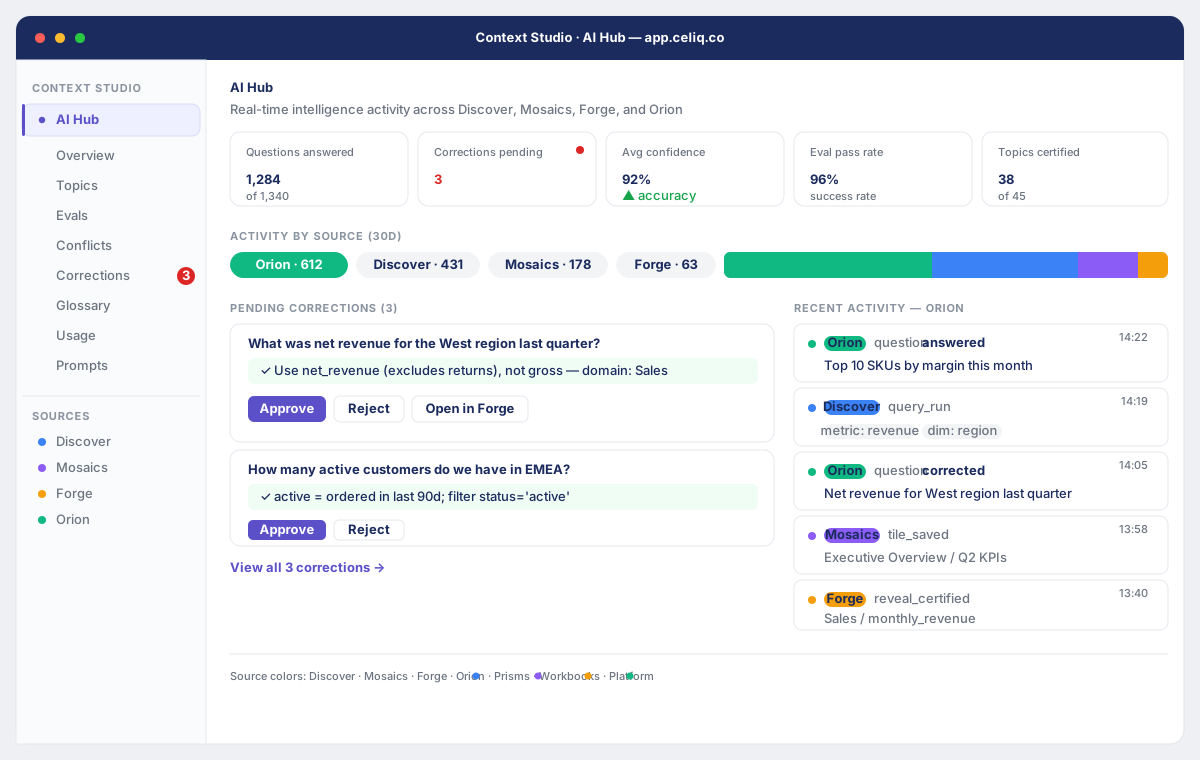
AI Hub is built from four stacked panels:
- Stats row — five summary cards across the top: Questions answered, Corrections pending, Accuracy, Eval pass rate, and Topics certified.
- Activity by source (30d) — filter chips, one per source, showing how many events each source produced in the last 30 days. Clicking a chip filters the feed.
- Pending corrections — a queue of Orion corrections awaiting review, each with action buttons.
- Recent activity — the live event feed (up to 20 events), newest first.
Each panel only appears when it has data. If there are no pending corrections, that panel is hidden; if no source activity exists in the window, the chips do not render.
When to use it
- You want a quick read on AI health before a stakeholder review or after a model change.
- A Weaver pushed new semantic work in Forge and you want to see whether Orion's answers improved.
- Someone reported a wrong answer, and you want to see the correction in the queue and act on it.
- You are investigating where activity is coming from — for example, whether most questions arrive through Orion or through Discover.
Concepts
| Term | What it means |
|---|---|
| Source | The part of Celiq that produced an event. AI Hub recognises Discover, Mosaics, Forge, Orion, Prisms, Workbooks, and Platform. |
| Event | A single intelligence action — a Discover query, a saved Mosaics tile, an Orion question, and so on — recorded in the activity feed. |
| Status | The outcome of an event: answered, failed, corrected, or info. The first three are colour-coded in the feed; info events show no status badge. |
| Accuracy | The latest evaluation pass rate if one exists; otherwise the share of recorded events that were answered (answered ÷ total). |
| Eval pass rate | The pass rate from your most recent Orion evaluation run. See Accuracy & Evaluations. |
| Correction | A flagged Orion answer with a suggested fix, waiting for a Luminary to approve or reject. See Corrections. |
| Certified topic | A topic that has been reviewed and marked certified. The Topics certified card shows certified vs. total. |
Getting started
Anyone with the Weaver or Luminary role can open AI Hub. To act on corrections you must be a Luminary.
Open Context Studio
From the main navigation, go to Context Studio (/context-studio).
Select the AI Hub tab
In the left rail, choose AI Hub — it is the first tab. The stats row and feed load automatically.
Let the panels populate
The stats, source breakdown, and corrections queue load on open. The activity feed loads separately and re-loads whenever you change the source filter.
Step-by-step
Read the stats row
The five cards give you the headline numbers. Questions answered shows the answered count with of <total> beneath it. Corrections pending turns red when one or more corrections are waiting. Accuracy and Eval pass rate show as percentages, or — when there is no data yet. Topics certified shows certified out of total.
Filter by source
Under Activity by source (30d), each chip shows a source name and its event count for the last 30 days, for example Orion · 142. Click a chip to filter the feed to just that source — the chip highlights in the source's colour. Click the same chip again, or the Clear link, to remove the filter.
Review pending corrections
If any corrections are waiting, the Pending corrections panel lists up to five. Each card shows the original question and, when present, the suggested correction message highlighted in green. If there are more than five, a View all
Act on a correction (Luminary)
As a Luminary, click Approve to mark the correction as applied, or Reject to dismiss it. The button shows Approving… or Rejecting… while it runs, and the card disappears from the queue once the action succeeds. Approving does not auto-edit your semantic model — it records the decision; the actual change is made in Forge.
Open a correction in Forge
Every correction card has an Open in Forge button (available to all viewers) that takes you to Forge so you can make the semantic change behind the fix.
Scan the recent activity feed
The Recent activity panel shows up to 20 of the newest events. Each row carries a coloured source dot, the source badge, the event type, the status (unless it is info), the question (when one was asked), any semantic objects involved, and the event time. When a source filter is active, the heading reads Recent activity —
Examples
A Tracer asks Orion a sales question. Moments later it appears at the top of the AI Hub feed, scoped to your workspace. The underlying event the API returns looks like this:
{
  "id": "evt_9f2a",
  "source": "orion",
  "status": "answered",
  "question": "What was net revenue by region last quarter?",
  "confidence": 0.91,
  "semantic_objects": [
    { "type": "metric", "name": "net_revenue" },
    { "type": "dimension", "name": "region" }
  ],
  "created_at": "2026-06-27T14:32:10Z",
  "user_name": "Priya N."
}
In the feed this renders as a green Orion badge with the answered status, the question text on one line, and chips for metric: net_revenue and dimension: region. The feed shows the first four semantic objects per event; beyond that it adds a +N more label.
To narrow the feed to a single source, click its chip — for example, clicking Forge · 23 filters the feed to the 20 most recent Forge events from the last activity, and the heading updates to Recent activity — Forge.
Best practices
- Check Corrections pending first. A red card means Orion has answers a user flagged as wrong — clearing the queue keeps accuracy honest.
- Use the source chips to spot imbalance. If almost all activity is Orion with little Discover or Mosaics use, that tells you how people actually consume your model.
- Treat Accuracy as a directional signal, not a contract. When an eval run exists, accuracy mirrors the eval pass rate; before any eval, it falls back to answered-over-total, which is coarser.
- After approving a correction, follow through in Forge. Approval records the decision but does not change the semantic model on its own.
Tips
The activity feed shows the 20 most recent events and the source breakdown covers the last 30 days — AI Hub is a live pulse, not an archive. For longer-range analysis use Usage and AI Operations.
Common mistakes
Trying to approve as a Weaver. The Approve and Reject buttons only appear for Luminaries. Weavers can view the queue and use Open in Forge, but cannot resolve corrections.
Reading Accuracy as a fixed metric. Until an evaluation run exists, Accuracy is just answered ÷ total events. Run an evaluation for a meaningful pass rate.
Troubleshooting
| Symptom | Cause | Fix |
|---|---|---|
Accuracy or Eval pass rate shows — | No evaluation run has completed and (for accuracy) no events are recorded yet. | Run an Orion evaluation in Accuracy & Evaluations, or generate activity so events accumulate. |
| Feed shows "No activity yet." | No AI events recorded in this workspace. | Run a Discover query, save a Mosaics tile, or ask Orion a question — events then appear here. |
| Approve/Reject buttons are missing | You are signed in as a Weaver (or lower). | Approving and rejecting corrections is Luminary-only. Use Open in Forge instead, or ask a Luminary. |
| "Could not complete action. Please try again." after Approve/Reject | The correction action request failed. | Retry the action; if it persists, confirm you have the Luminary role and that the correction still exists. |
| A source chip you expected is missing | That source produced no events in the last 30 days. | The breakdown only lists sources with activity in the window. Generate activity from that source and reload. |
| Corrections pending count differs from the queue length | The card prefers the live queue count when loaded, falling back to the overview total otherwise. | Reload the tab so the pending queue and the overview agree. |
Related pages
- Corrections — the full review queue behind the AI Hub corrections panel.
- Accuracy & Evaluations — where eval runs and pass rates come from.
- AI Operations — deeper, longer-range AI telemetry and cost.
- Usage — query volume, top reveals, and active users over time.
- Forge — where you apply the semantic changes behind a correction.
- Orion — the AI layer whose questions and answers feed the AI Hub.