Projects and connections
How Forge projects organize your semantic model and bind to a warehouse connection, plus how to switch, create, and delete them.
When to use it — Whenever you start modeling a new business area, or need to point a set of models at a different warehouse.
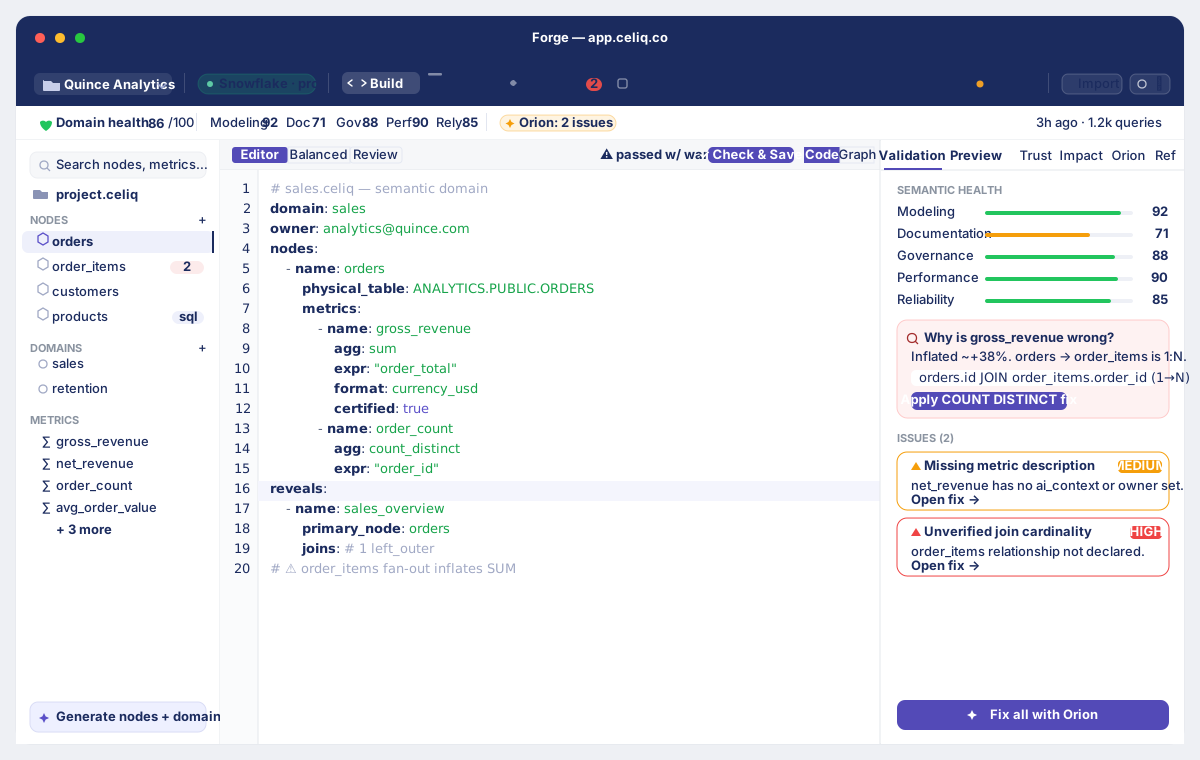
Where to find it — Open Projects from the top navigation. Selecting a project drops you into Forge.
Who can use it — Everyone can open and browse projects; only Luminary can create or delete them. Weaver and Luminary can edit project settings.
Projects keep related modeling work together and tie it to the data it runs against. Every node and domain you build lives inside exactly one project, and every project points at one warehouse connection. When Orion answers a question or Discover runs a query, it uses the connection bound to the active project.
Overview
The Projects page shows every project in your workspace as a card grid. Each card displays the project icon and name, a short description, aggregate counts (domains and nodes), and a connection chip showing the bound warehouse. Projects you cannot edit — the built-in System project — carry a System badge and an "Explore and build · no editing" footer.
Selecting a card sets that project as the active project and navigates you into Forge. The active project is remembered across page loads, so you return to the same project the next time you open Celiq.
A project is bound to a single warehouse connection. That binding is stored on the project itself (its connection_id), so all the schema browsing, query execution, and AI work for the models inside a project run against that one connection. A project with no connection set yet shows "No default connection" on its card, and Forge will prompt you to set one before you can pull tables.
When to use it
- Separating business areas. Keep "Growth Analytics", "Finance", and "Supply Chain" models in their own projects so each team works in a focused space.
- Targeting different warehouses. If your finance models live in Snowflake and your product models live in BigQuery, give each its own project with the matching connection.
- Exploring the System project. Use the read-only System project to learn how a model is structured without risk of changing anything.
- Cleaning up. Delete a project you no longer need to remove its models, domains, and version history in one step (Luminary only).
Concepts
| Term | Meaning |
|---|---|
| Project | The top-level Forge container for your domains and nodes, bound to one warehouse connection. |
| Connection | A configured warehouse (Postgres, BigQuery, Snowflake, DuckDB) that the project queries against. Set per project. |
| Active project | The project currently selected. Forge, Discover, and Orion operate inside it. It is remembered between sessions. |
| Default Project | Created automatically the first time a workspace opens Projects with none yet — it adopts the workspace's first connection and absorbs any unassigned nodes and domains. |
| System project | A built-in, read-only project marked with a System badge. It cannot be edited or deleted. |
Getting started
Before you create a project you need at least one warehouse connection in the workspace, since a project is only useful once it is bound to a connection. See Warehouse connections for how connections are set up.
To open the page, choose Projects from the top navigation. The grid loads every project in your workspace. If your workspace has no projects yet, opening this page creates a Default Project for you automatically and assigns it the workspace's first connection.
Step-by-step
Open the Projects page
Choose Projects from the top navigation. You will see a card for each project, plus a dashed New project tile if you are a Luminary.
Switch the active project
Click any project card. Celiq sets it as the active project, remembers the choice, and navigates you into Forge so you can start modeling against that project's connection.
Create a new project (Luminary only)
Click New project. In the New project — Luminary only dialog, pick an Icon, type a Project name (required), and add an optional Description. Press Create project. The new project becomes active and opens in Forge.
Bind or change the connection
A new project starts with no connection. Open Project Settings in Forge to choose the warehouse connection the project should query against. You can change the connection here at any time.
Delete a project (Luminary only)
From Forge, delete the project you no longer need. Deletion cascades: it removes the project's node version history, then its nodes, then its domains, then the project itself. System projects cannot be deleted.
Examples
A project's settings can be expressed as a small block of configuration. The project name and the bound connection are the two essentials; the optional settings_json carries modeling defaults such as query grain, timezone, and a row limit.
name: Growth Analytics
icon: 📈
description: Acquisition, activation, and retention models
connection_name: snowflake_prod
settings_json:
  grain: day
  timezone: UTC
  limit: 10000
When you create this project, Celiq resolves connection_name to the matching connection in your workspace and binds the project to it. If the name does not match any connection, the project is created with no connection and you set one later in Project Settings.
Best practices
- Name projects after business areas, not teams or people. "Finance" outlives a reorg; "Dana's models" does not.
- Bind a connection immediately after creating a project. Schema browsing and queries fail until a connection is set.
- Keep one warehouse per project. Because the connection is project-wide, mixing warehouses in one project is not possible — split them into separate projects instead.
- Use the System project to learn, not to build. Copy patterns from it into your own project rather than trying to edit it.
Tips
The active project is stored locally and restored when you return, so you can leave Forge mid-task and come back to the same project. To move to a different area, just open Projects and click another card — there is no separate "switch" step.
Common mistakes
- Forgetting the connection. A brand-new project has none. Until you set one in Project Settings, pulling tables returns "No connection set for this project."
- Expecting to edit the System project. It is read-only by design — attempts to modify or delete it are rejected with "System projects cannot be modified."
- Assuming any builder can create projects. Creation and deletion are Luminary-only; Weavers can edit project settings but not create or remove projects.
- Reusing a project name. Names must be unique within a workspace — duplicates are rejected.
Troubleshooting
| Symptom | Cause | Fix |
|---|---|---|
| "No connection set for this project. Open Project Settings to set one." when browsing tables | The project has no bound connection | Open Project Settings in Forge and choose a warehouse connection. |
| "Connection ' | The connection the project points to was renamed or removed | Re-select a valid connection in Project Settings. |
| "Creating projects requires luminary role." | A non-Luminary tried to create a project | Ask a Luminary to create it, or have your role raised to Luminary. |
| "System projects cannot be modified." | An edit or delete was attempted on a System project | System projects are read-only; build in your own project instead. |
| "Project name required" / name field rejected | The name was blank | Enter a non-empty project name before saving. |
| "Project not found" | The project was deleted or belongs to another workspace | Reload the Projects page to see the current list. |
Related pages
- Forge — the modeling workspace you enter after selecting a project
- Warehouse connections — set up the connections a project binds to
- Workspaces — projects live inside a workspace